Onboarding
Getting started - Phishing resistant
This configuration is the most secure way of configuring Entra ID, where your users are all required to authenticate using Phishing-Resistant authentication.
On this page
This configuration is the most secure way of configuring Entra ID, where your users are all required to authenticate using Phishing-Resistant authentication.
This means that your users:
- never use password
- never accept an Microsoft Authentication MFA notification
- never type an SMS based OTP or similar
They use passkeys or certificates.
Switching to this type of authentication is not done in a day. Microsoft has provided a good documentation page for planning and deploying phishing resistant, and we can of course also help you with this.
Essentially this involves things like device readiness and bootstrapping phishing resistant methods. This is where CheckID can help you, by providing secure means of users to onboard into this type of organization.
Steps
Configure the recommended Conditional Access policies
We have several recommended configurations, depending on your situation. There are two "issues" we need to handle during onboarding for the phishing resistant configuration, which is app protection and authentication strength.
To support the Microsoft recommended approaches, with temporarily exempting the user from certain conditional access policy requirements, CheckID has two features available:
- Automatic maintenance of an Entra ID security group for onboarding users
- Calling a webhook with information about the user doing the onboarding, where the target webhook can do the same thing as the previous feature (adding a person temporary to a group)
Configure Temporary Access Pass and Passkeys
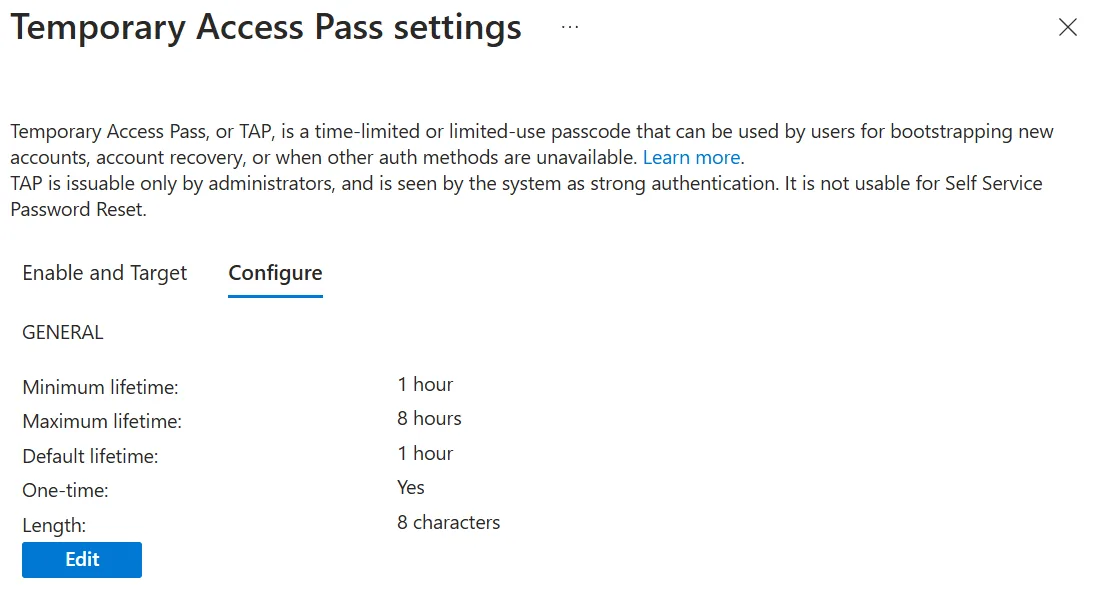
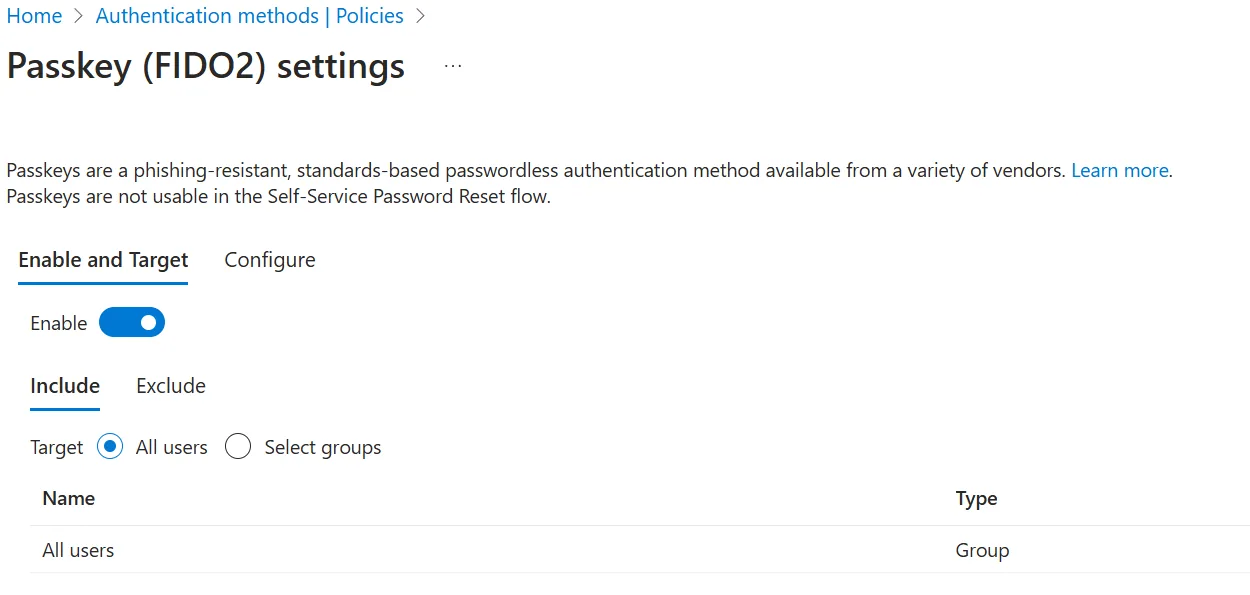
For onboarding users, we get users to register the Microsoft Authenticator app using a Temporary Access Pass, while getting a passkey enrolled at the same time. This means that the feature Temporary Access Pass and Passkey must be enabled in the tenant.
In the Entra portal, open Protection and Authentication methods.
Configure Passkey (FIDO2) to target all users with the below configuration:
Configure Temporary Access Pass to target all users with the below configuration: