Events
Microsoft Teams app
Install the Fortytwo Universe app in Microsoft Teams so your workflows can send messages to people and channels.
On this page
- Before you start
- What the app can do in your tenant
- Install the app
- Add the app to your organization
- Install it for the people who should get messages
- Add it to the teams whose channels should get messages
- Send a message from a workflow
- Create the workflow
- Add the action
- Choose who gets it
- Write the message
- Check the preview and test it
- Who can be taken from the event
- What people see in Teams
- When a message does not arrive
- Remove the app
The Fortytwo Universe app for Microsoft Teams delivers the messages your workflows send. A workflow can tell a person in a chat, post in a team's channel, or both, when something happens in Identity Universe: a license is about to be reclaimed, an access request is waiting, a student was added to a policy.

You decide what is sent, to whom and when, under Workflows in Fortytwo Universe. The app only delivers those messages.
Before you start
You need:
- a Teams administrator in your organization, to add the app;
- a person with the Workflow - administrator role in Fortytwo Universe, to build the workflows (see Permissions);
- the app package, a zip file named
fortytwo-universe-teams-prod-<version>.zip, which you get from Fortytwo.
What the app can do in your tenant
- It asks for no Microsoft Graph permissions and needs no admin consent.
- It can only post where it is installed: for a person who has the app, or in a team the app is added to.
- It only posts what your own workflows ask for.
- It does not read your chats or channels. It only sees what is written directly to it, and answers that with a short help text.
Install the app
Add the app to your organization
- Open the Teams admin center and go to Teams apps > Manage apps.
- Select Actions > Upload new app and choose the zip file.
- The app appears as Fortytwo Universe, published by Fortytwo. It can take a few hours before it shows up for everyone.
If your organization blocks custom apps, allow them under Teams apps > Manage apps > Org-wide app settings > Custom apps, or allow this one app in the app permission policy that applies to the people who should get messages.
Install it for the people who should get messages
A person can only get a message from the app once it is installed for them.
- For many people: in the Teams admin center, go to Teams apps > Setup policies, open the policy that applies to them (or Global (Org-wide default) for everyone), and under Installed apps select Add apps > Fortytwo Universe. Teams installs the app for each person over the following hours.
- For yourself, to try it: in Teams, open Apps, search for Fortytwo Universe and select Add.
Each person gets one short welcome message when the app is installed for them.
Add it to the teams whose channels should get messages
In Teams, open the team, select ... > Manage team > Apps, find Fortytwo Universe and select Add. The app posts one welcome message in the team and can then post in its channels.
Send a message from a workflow
Create the workflow
In Fortytwo Universe, open Administration > Workflows and create a workflow, or edit one. Choose its trigger as usual.
Add the action
Under Actions, select Send Teams message.
Choose who gets it
Send to a person, a channel, or both:
- Person: A person from the event, the person the event is about, or One specific person, chosen with Choose person.
- Send to a channel: pick the channel. Only teams the app is added to are listed.
Write the message
Write the Title and the Message. The buttons above the message make text bold or italic, add a link, or turn lines into a bulleted or numbered list. The last button, Add an emoji, opens a row of emoji: select one to put it where the cursor is, in the title, the message or the button text.
To put a value from the event into the message, select it under Insert from the event. It goes in where the cursor is, written as {{Name}}, and is replaced by the event's value when the workflow runs. Ids and the event's own details are under More values.
When the event is about a person in the Universe ID, the list also has that person's display name, first name, last name, email and user principal name, for example {{RequesterDisplayName}} or {{CoreObjectEmail}}. This applies to the identity that changed, and to the person who asked to join, approved or rejected a request. The values are looked up when the workflow runs. If the person cannot be found, the message is not sent and the reason is recorded in the workflow run's outcome.
Optionally select Add a button. The button opens an https:// link, which can also be a value from the event, such as the link a person uses to keep a license.
Check the preview and test it
The Preview beside the form shows the message as it arrives in Teams, with Example values filled in. Turn them off to see where each value goes.
Send test message sends the message, as written, to the channel and the specific person you chose. A test has no event, so a test needs a channel or one specific person.
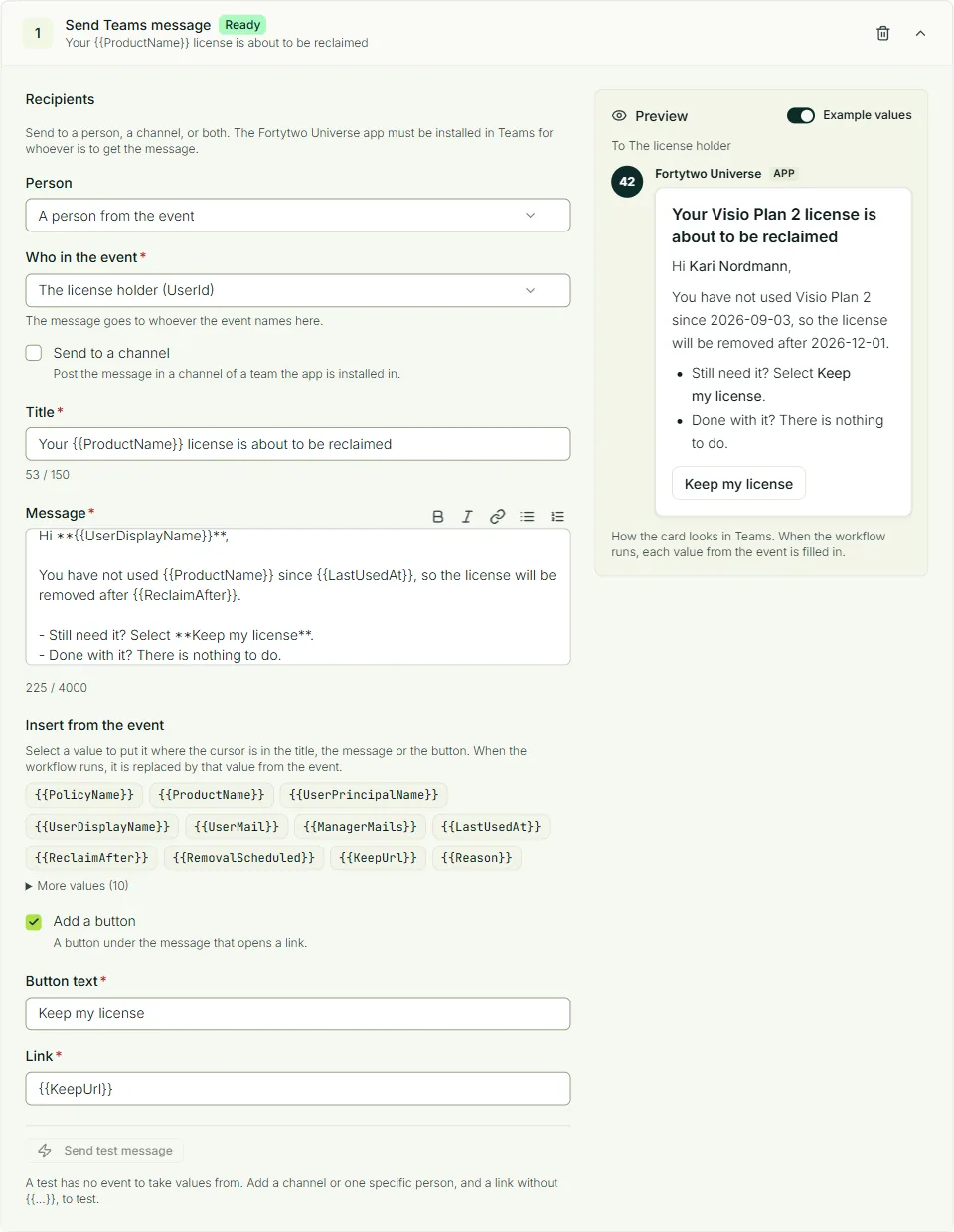
The title can be up to 150 characters, the message up to 4,000 and the button text up to 40.
Who can be taken from the event
| Trigger | A person from the event |
|---|---|
| When a member joins or leaves | The member, when every chosen collection is built from a rule, all of users or all of identities |
| When a student is added to or removed from a policy | The student |
| When a Licensing event happens | The license holder, or for a reclaim the license holder's manager |
| When a message cannot be delivered | The person who did not get the message, when it was a Teams message |
| When a request to join changes | The person who asked to join, the approver or the person who rejected the request, whichever every chosen event names |
| When identity attributes change | The identity that changed |
Some events name people by their Universe ID rather than their Entra account: access requests, identity changes and collections of identities. Fortytwo Universe looks up each person's Entra account when the workflow runs. Someone without one does not get the message, and is named in the run's outcome; everyone else still gets it.
What people see in Teams
Messages arrive from Fortytwo Universe, in the person's chat with the app or as a post in the chosen channel, as a card with the title, the message and the button.
When the app is installed, a person gets this welcome message:
Hello. I am the Fortytwo Universe bot.
I send you a message here when a workflow that your administrators have set up concerns you. There is nothing you need to do.
A team gets a welcome that says the app can post in its channels when a workflow says so.
Two commands help when a message does not arrive:
status, in a person's chat with the app, checks that workflow messages can reach that person. If the app had not recorded the chat, it records it and says so. In a team, it says how many of the team's channels the app can post in.channels, in a team, lists the channels the app can post in. These are the channels offered under Send to a channel in a workflow.
Both give the organization's tenant id. Anything else written to the app gets a short explanation of what it does.
When a message does not arrive
The app tries again when Teams is busy or unavailable: up to twelve times, spread over half an hour or more. When it gives up, the message is recorded as not delivered, with the reason:
| Reason | What to do |
|---|---|
| The app is not installed for the recipient | Install the app for that person, or add it to that team (see Install the app). If it is installed, have the person write status to the app, or write channels in the team |
| Teams refused the message | Check that the person or the channel still exists and that the app is still added there |
| Teams did not take it after every attempt | Teams was unavailable for a long time. The next message is tried again as usual |
Two things are worth knowing about how messages are delivered:
- One chat or channel gets at most one message every two seconds. A burst of several hundred messages to the same channel therefore takes several minutes to arrive. Other chats and channels are not held up by it.
- A message can, in rare cases, arrive twice. If Teams took a message but its answer was lost on the way back, the app sends it again instead of risking that it never arrived.
You can find the messages that were not delivered in two places:
- The audit log shows Message sent, Message not delivered, Teams app installed and Teams app removed, from the source Notifications. Open an event to see who the message was for and why it failed. See Audit log.
- A workflow can react to it. The trigger When a message cannot be delivered, under Notifications, starts a workflow each time a Teams message, a Slack message or an email is given up on, for example to tell an operations channel or to call a webhook.
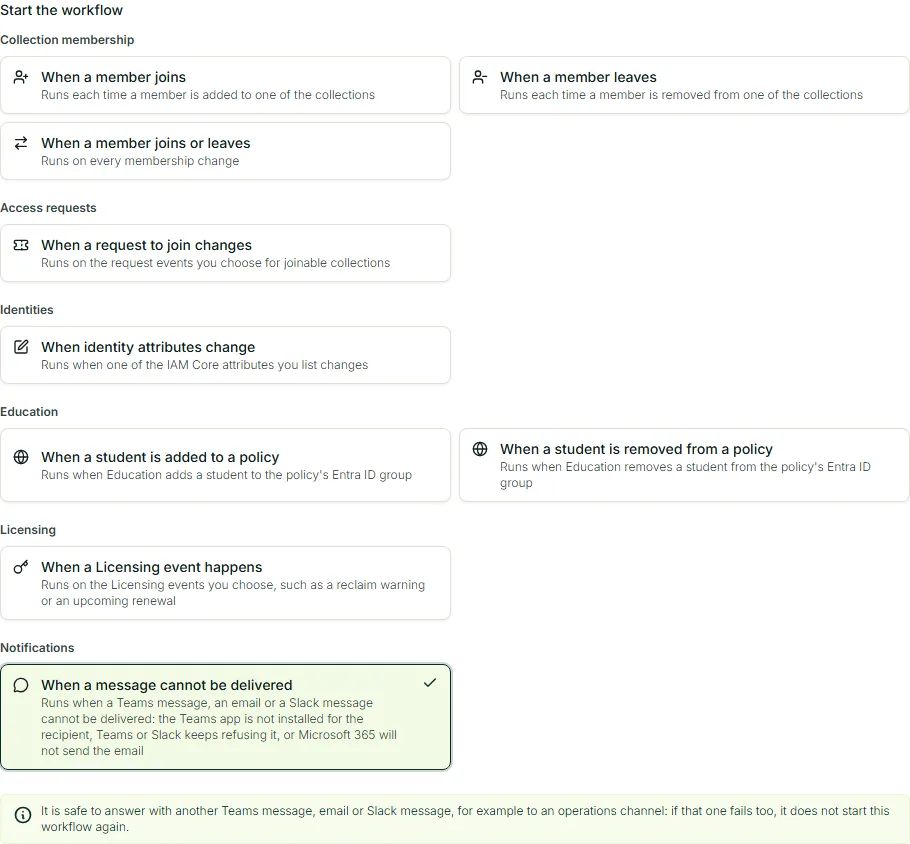
It is safe to answer with another Teams message, an email or a Slack message: if that one fails too, it does not start the workflow again.
Remove the app
- For one person or one team: uninstall the app for the person, or remove it from the team. The app stops posting there at once.
- For the whole organization: delete the app under Teams apps > Manage apps in the Teams admin center.
A person who blocks or removes the app stops getting messages. Adding the app again resumes them.