Installation - Active Directory
If you have student accounts in Active Directory, this is the guide for you, as you will need to install the agent module and run it.
Server requirements
- The agent must be running on a domain joined windows server (You can run the agent on the Entra ID Connect or Entra ID Cloud sync server)
- PowerShell 7.6
- AD PowerShell installed (
Install-WindowsFeature -Name RSAT-AD-Tools -IncludeAllSubFeature)
Step 1 - Create app registration for agent
Note: If the server is on Azure, you should not create an app registration, but instead use a managed service identity
-
If you have not already consented to Fortytwo Universe, go to: https://login.microsoftonline.com/common/adminconsent?client_id=2808f963-7bba-4e66-9eee-82d0b178f408
-
Run the following in PowerShell on the server as administrator
$Certificate = New-SelfSignedCertificate -Subject "studentpasswordagent" -NotAfter (Get-Date).AddYears(100)
[System.Convert]::ToBase64String($Certificate.Export([System.Security.Cryptography.X509Certificates.X509ContentType]::Cert), "InsertLineBreaks") | Set-Content -Path "studentpasswordagent-$($env:COMPUTERNAME).cer"
Write-Host "" "Thumbprint:       $($Certificate.ThumbPrint)" "Certificate file: studentpasswordagent-$($env:COMPUTERNAME).cer" "" -Separator "`n"
-
In Entra ID, go to App registrations and click New registration
-
Give it a name and create Register
-
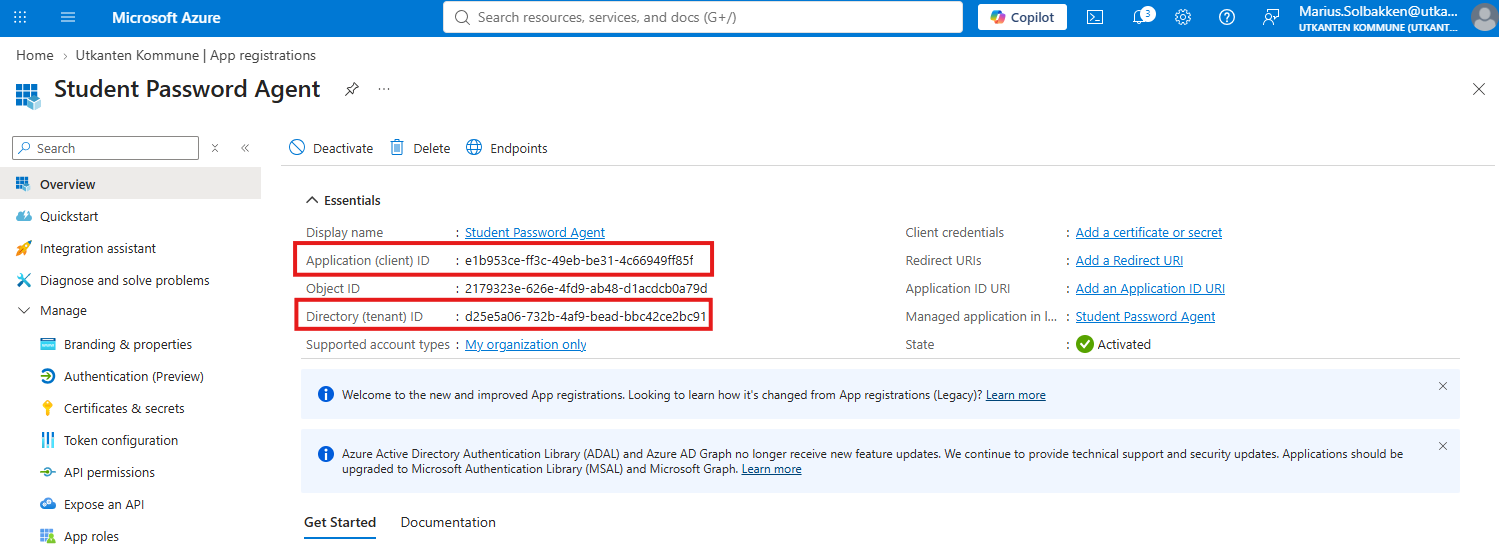
Note down the Client ID and Tenant ID:
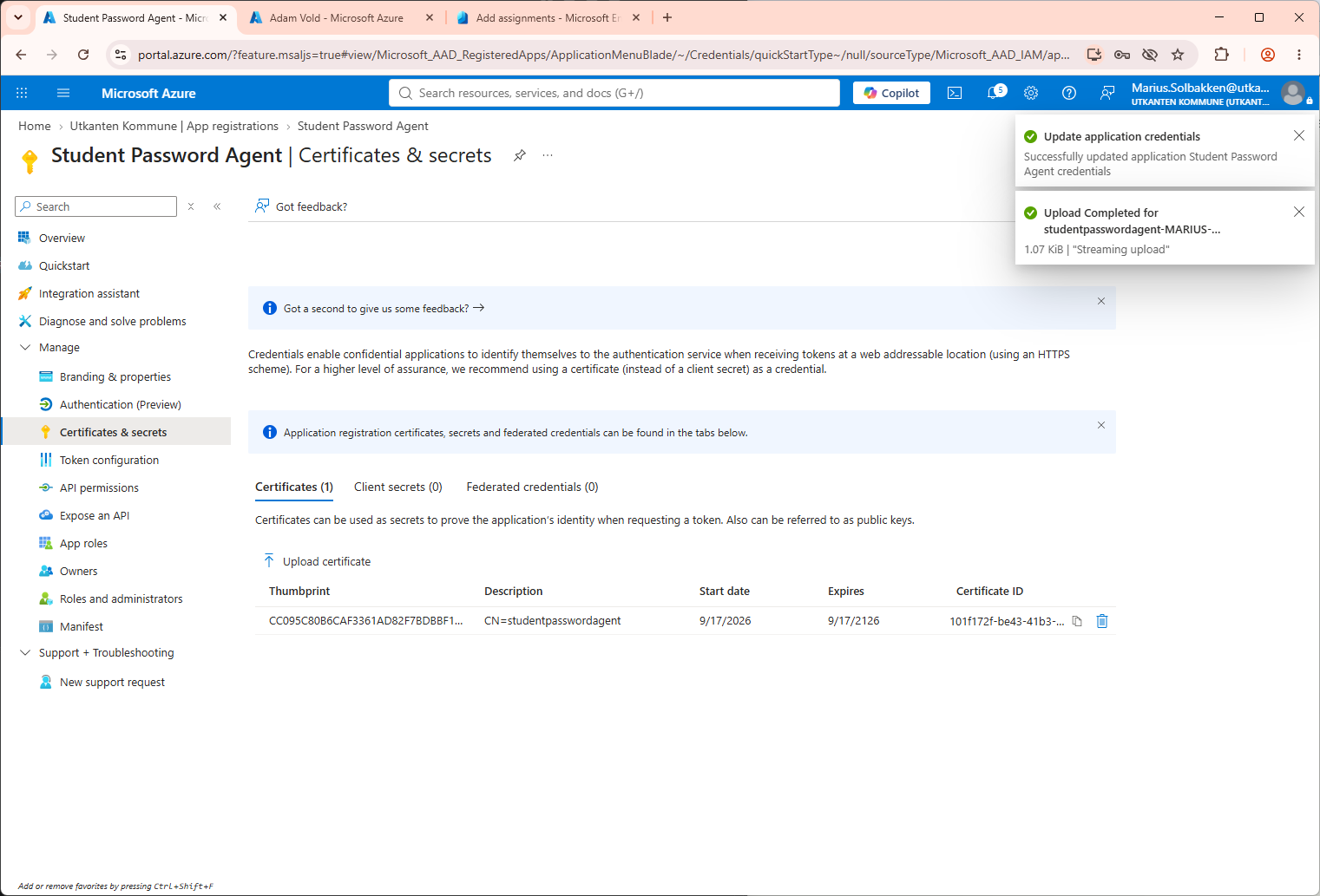
- Under Certificates & secrets upload the certificate file created above
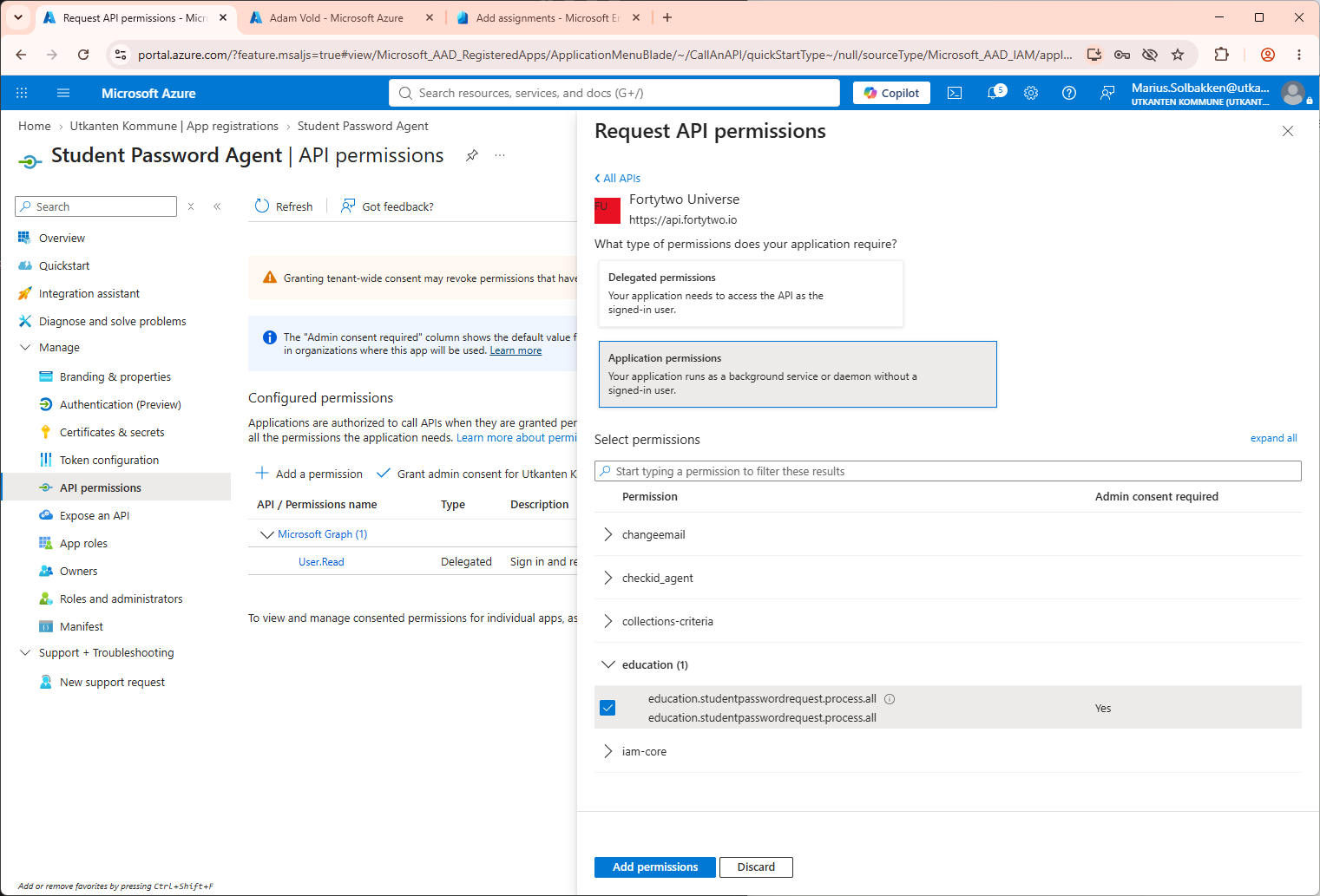
- Under API permissions, click Add a permission, select APIs my organization uses and locate Fortytwo Universe
-
Under Application permissions check education.studentpasswordrequest.process.all and click *Add permissions**.
-
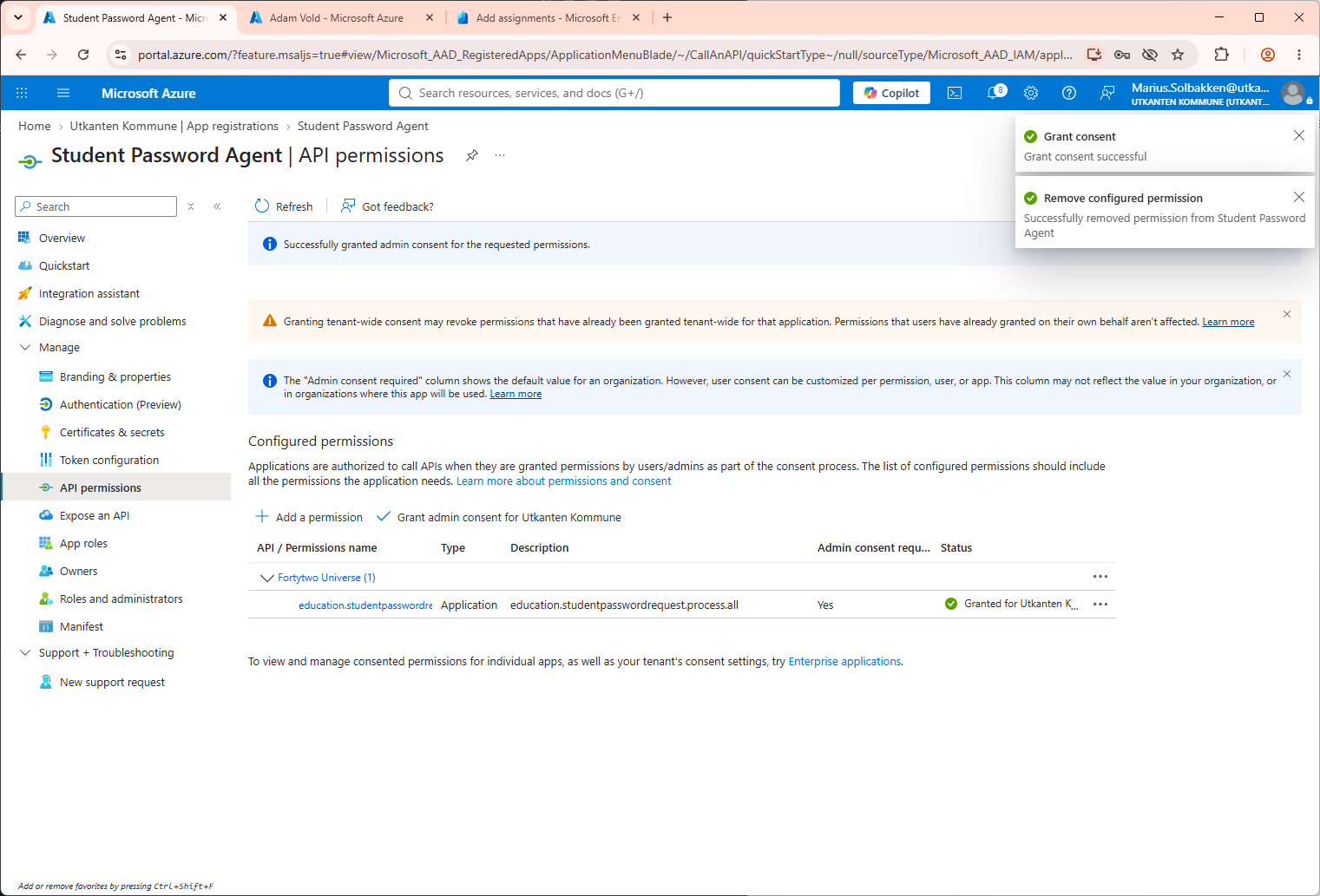
Click Grant admin consent
Step 2 - Create the run file for the agent
Create C:\studentpasswordagent\run.ps1 with the following contents:
# Can be enabled for debugging:
# Start-Transcript -OutputDirectory "C:\education\studentpassword\transcripts" -Append

# Install / update module
Install-Module Fortytwo.IAM.Education.StudentPasswordAgent -Force -Scope CurrentUser

# Authenticate to the Universe API
Add-EntraIDClientCertificateAccessTokenProfile `
    -Scope "https://api.fortytwo.io/.default" `
    -Thumbprint "THUMBPRINT_FROM_STEP2" `
    -ClientId "CLIENT_ID_FROM_STEP2" `
    -TenantId "TENANT_ID_FROM_STEP2"

Connect-StudentPasswordAgent -AccessTokenProfile "default"

# Run the agent
Invoke-StudentPasswordAgent -PollingInterval 3 -Verbose # -IdentityAttribute "msDs-cloudExtensionAttribute19"
Step 3 - Try to run the student password agent manually
- Open a PowerShell and run
cd c:/studentpasswordagent ; . ./run.ps1
At this point, you can test out setting a student password and see that requests are received and processed by the agent.
Step 4 - Run the student password agent as a scheduled task
Create a gMSA for the scheduled task
Run the below PowerShell in order to create a gMSA:
# SERVERNAME should be replaced with the actual name of the server, with a $ on the end (as an example: SERVER01$)
New-ADServiceAccount -Name "studentpasswordagent" -PrincipalsAllowedToRetrieveManagedPassword "SERVERNAME$" -DNSHostname "fortytwo.io"
Delegate the gMSA permissions to three attributes in AD
For each OU where the agent should be able to set passwords, run the following (with the correct OU path and domain name):
dsacls "OU=Users,DC=contoso,DC=com" /I:S /G "contoso.com\studentpasswordagent$:CA;Reset Password"
dsacls "OU=Users,DC=contoso,DC=com" /I:S /G "contoso.com\studentpasswordagent$:rpwp;pwdLastSet"
dsacls "OU=Sales,DC=contoso,DC=com" /I:S /G "contoso.com\studentpasswordagent$:rpwp;lockoutTime"
Grant permission to certificate
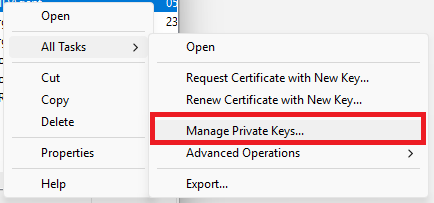
Run certlm.msc, locate the studentpasswordagent certificate under Personal certificates, and Manage private keys
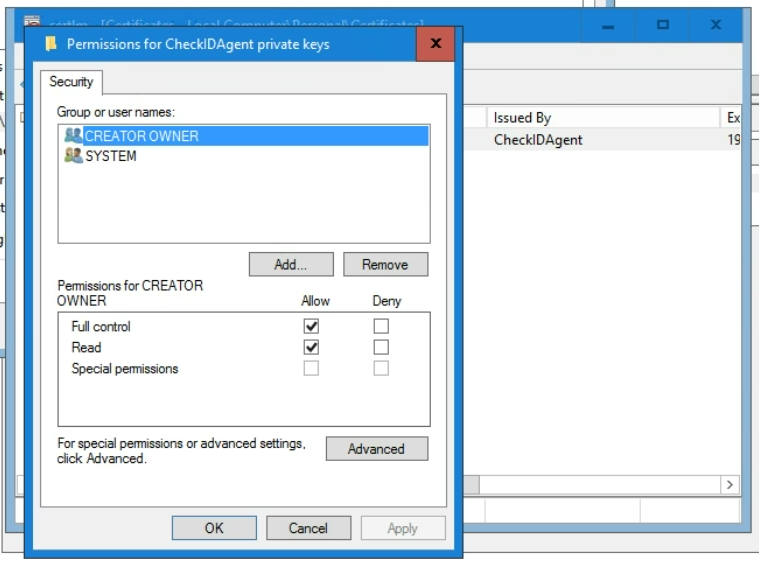
Locate the gMSA you created, and grant Full control
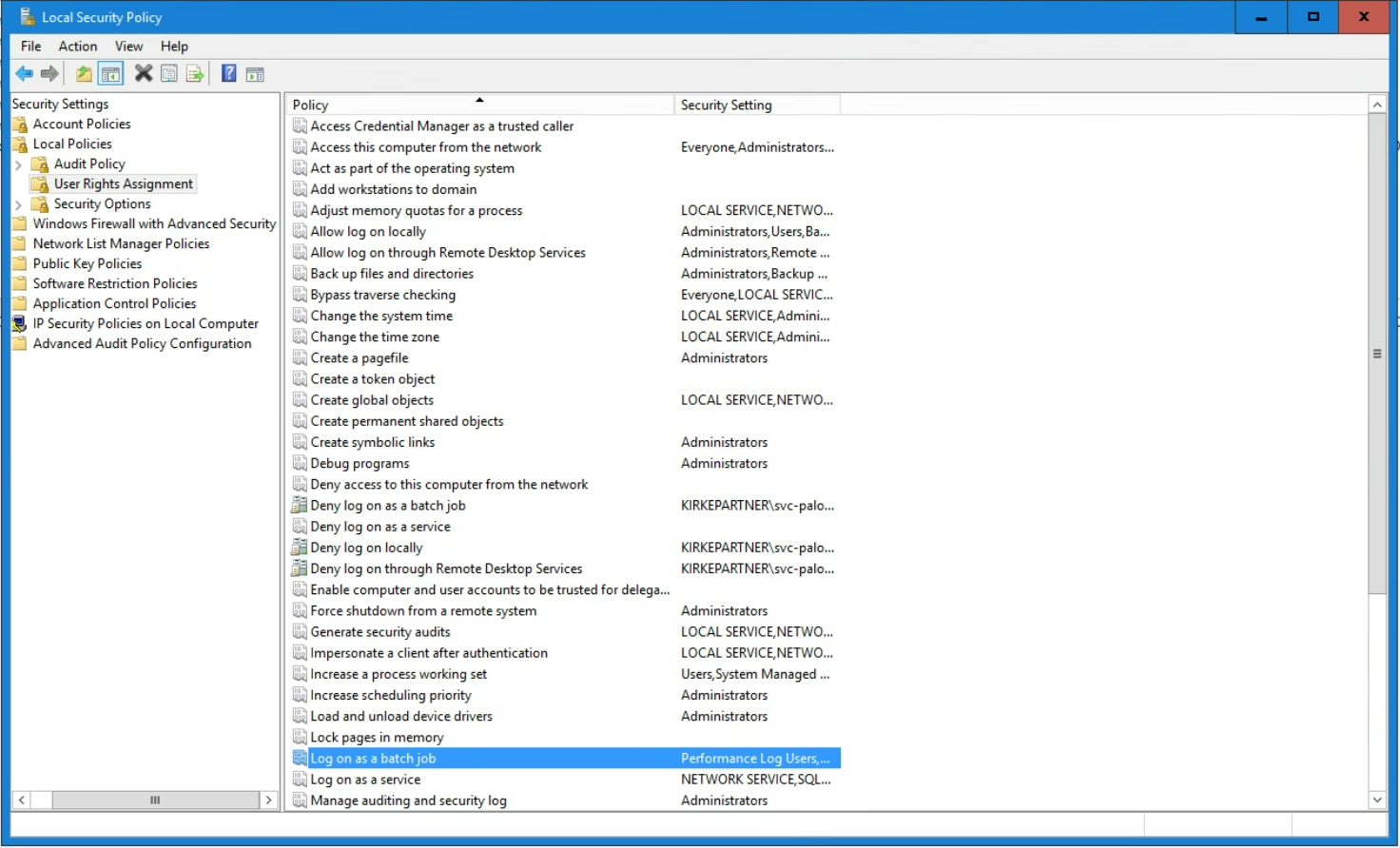
Grant permission to Log on as a batch job
Create scheduled task for the agent
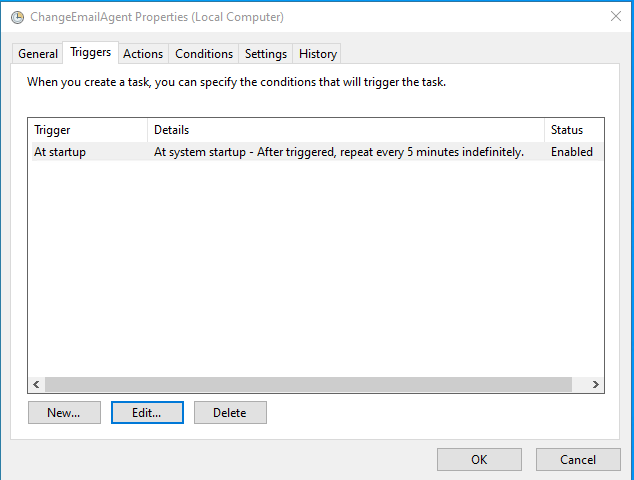
- Create a scheduled task running as the gMSA that:
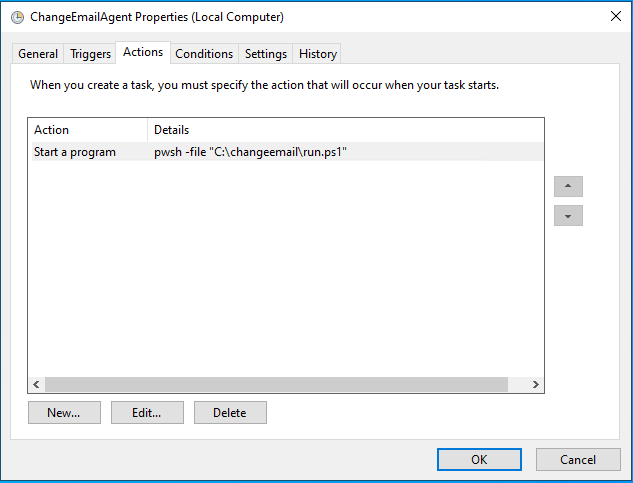
- Runs the action
pwshwith the arguments-file c:\studentpasswordagent\run.ps1 - Trigger at startup
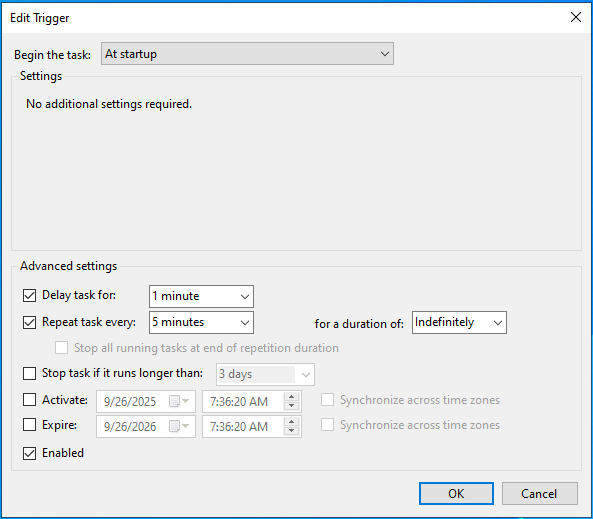
- Delay 1 minute
- Repeat every 5 minutes indefinitely (in order to restart the agent if it fails)
- Do not stop task if it runs longer than anything
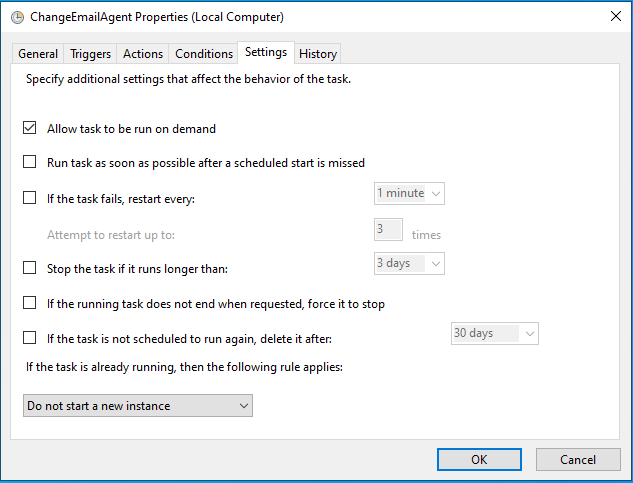
- Do not run multiple instances
- Never stop the task if running for a long time
- Runs the action
Typical configuration:
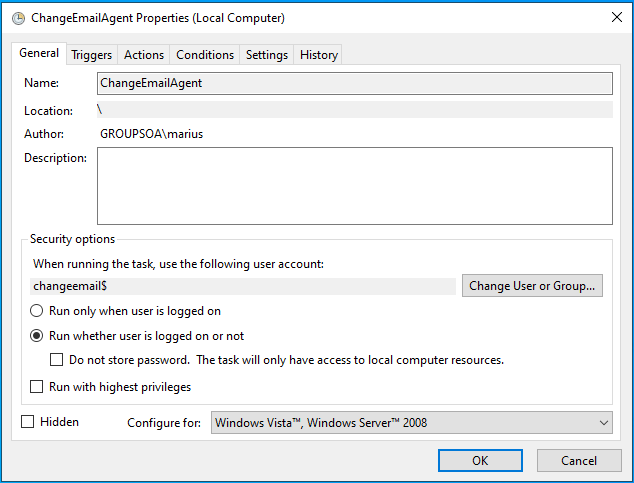
Having trouble with adding the task as a gMSA? Create the task running as your own user acocunt first, and update the task using PowerShell: