IAM Core
Authenticating PowerShell
On this page
- Interactive PowerShell
- PowerShell module EntraIDAccessToken
- Ways to issue an Entra ID access_token
- Using EntraIDInteractiveUserAccessTokenProfile
- Consent
- More ways to issue an Entra ID access_token
- Running in an Azure VM
- System assigned
- User assigned
- Running on a local server
- Azure Arc
- Certificate based authentication
Interactive PowerShell
To use PowerShell to connect to the Fortytwo Universe proper authentication must performed.
A valid PowerShell session can be configured in multiple ways, provided the proper authentication.
All API endpoints are authenticated with the customer's own Entra ID, through our multi tenant application Fortytwo Universe (for how to provide admin consent, if not already in place, see this URL).
This means that you can use any kind of identity to talk to our API! Users, Agents, Service Principals, Managed Service Identities, you name it. As long as you can get a token for the scope https://api.fortytwo.io/.default or the resource 2808f963-7bba-4e66-9eee-82d0b178f408 you are good.
PowerShell module EntraIDAccessToken
Install-Module -Name EntraIDAccessTokenAuthentication is handled using the Fortytwo PowerShell module EntraIDAccessToken, available through PowerShell Gallery. Using the Fortytwo EntraIDAccessToken PowerShell module is the way all Fortytwo PowerShell modules authenticate with the Fortytwo Universe.
EntraIDAccessToken has multiple ways of creating an access token profile using the Add-EntraID*AccessTokenProfile cmdlets (replace * with preferred method). The available cmdlets are documented here.
Ways to issue an Entra ID access_token
To issue an Entra ID access token profile some common methods for an interactive user session are:
- Add-EntraIDClientSecretAccessTokenProfile
- Add-EntraIDClientCertificateAccessTokenProfile
- Add-EntraIDInteractiveUserAccessTokenProfile (here we are using this profile)
Using EntraIDInteractiveUserAccessTokenProfile
To add an EntraIDAccessToken profile and authenticate to Fortytwo Universe:
# Invoke interactive sign in
Add-EntraIDInteractiveUserAccessTokenProfile -Profile "Default" -TenantId "TENANTID" -ClientId "68bf2f1d-b9e1-4477-8b90-81314861f05f" -Scope https://api.fortytwo.io/.default

# The TenantId will be your Entra tenant identifier (GUID) or tenant name
# The ClientId is for the "Fortytwo Universe - Prod - PowerShell Client"

# Get access_token and copy it to clipboard
Get-EntraIDAccessToken -Profile "Default" | Set-Clipboard

# To inspect the contents of the access_token
Get-EntraIDAccessToken -Profile "Default" | Get-EntraIDAccessTokenPayload

# Or invoke a request
Invoke-RestMethod "https://api.fortytwo.io/collections" -Headers (Get-EntraIDAccessTokenHeader -Profile "Default")
The TenantId will be your Entra tenant identifier (GUID) or tenant name.
The ClientId is the enterprise application Fortytwo Universe - PowerShell Client.
Consent
Enterprise application Fortytwo Universe - PowerShell Client requires consent. This can be provided when using the client id for the first time, or it can be provided by admin consent (this follows the same process as the consent flow for Identity Universe WebUI).
Admin consent URL for Fortytwo Universe - PowerShell Client:
https://login.microsoftonline.com/common/adminConsent?client_id=68bf2f1d-b9e1-4477-8b90-81314861f05f
With these steps completed you will have been issued an access_token that can be used to establish a connection with the collections API.
More ways to issue an Entra ID access_token
A few common EntraIDAccessToken methods are described in this article. For a more extensive list, using system-assigned identities, or an Azure Arc identity, you may want to take a look here.
This page describes different ways of authenticating PowerShell to the Fortytwo Universe, for different automations, such as uploading file data, talking to the connector API, etc.
All scripts use the EntraIDAccessToken PowerShell module, which means that the only thing required to connect is to complete one of the available Add-EntraID*AccessTokenProfile cmdlets. This is documented here, but below are the most common scenarios covered.
Running in an Azure VM
System assigned
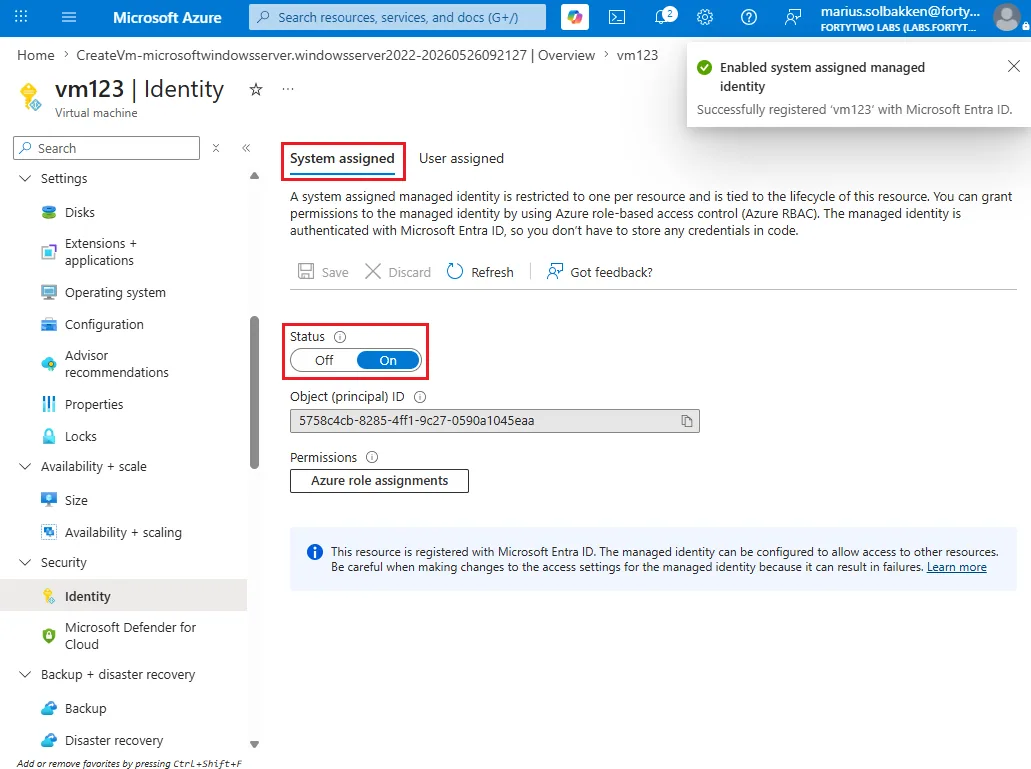
Add-EntraIDAzureVMMSIAccessTokenProfile -Scope "https://api.fortytwo.io/.scope" -Name ConnectorUser assigned
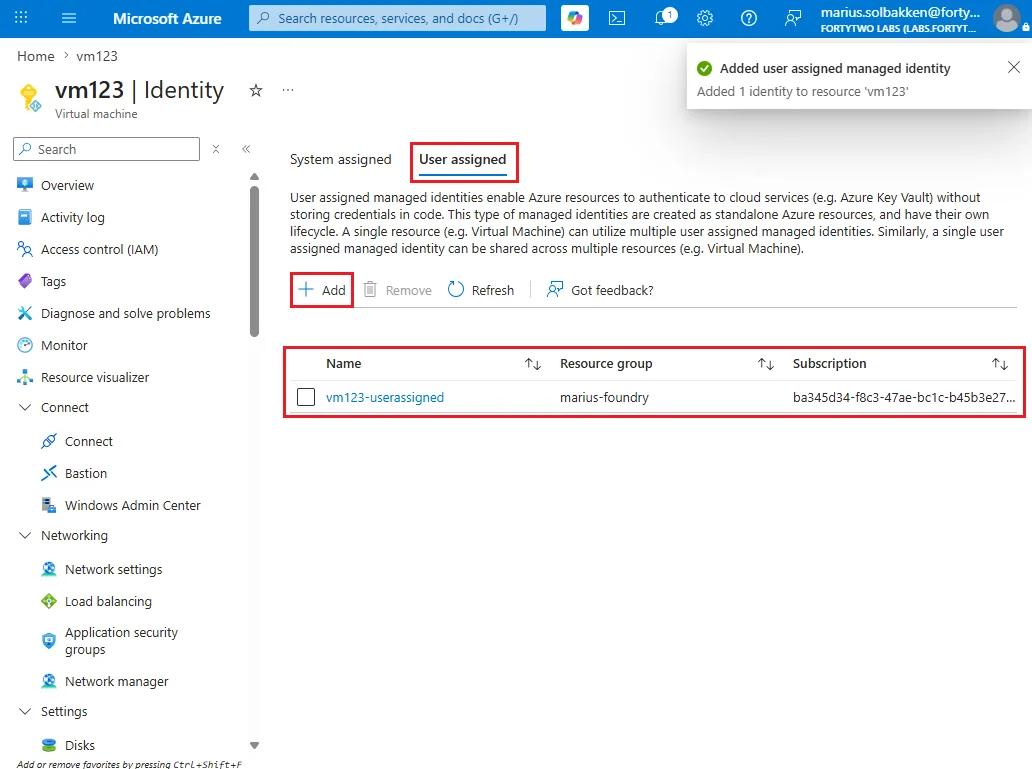
Add-EntraIDAzureVMMSIAccessTokenProfile -Scope "https://api.fortytwo.io/.scope" -Name Connector -UserAssignedIdentityClientId "00000000-0000-0000-0000-000000000000"Running on a local server
Azure Arc
Add-EntraIDAzureArcManagedMSITokenProfile -Resource "https://api.fortytwo.io" -TenantId "00000000-0000-0000-0000-000000000000" -ClientId "00000000-0000-0000-0000-000000000000"Certificate based authentication
In order to use certificate based authentication, the following steps must be completed:
- On the server you want to run your automation on, run PowerShell as an Administrator and create a new self signed certificate using the PowerShell cmdlet
New-SelfSignedCertificate:
$Certificate = New-SelfSignedCertificate -Subject "connector" -NotAfter (Get-Date).AddYears(100)
[System.Convert]::ToBase64String($Certificate.Export([System.Security.Cryptography.X509Certificates.X509ContentType]::Cert), "InsertLineBreaks") | Set-Content -Path "connector-$($env:COMPUTERNAME).cer"
Write-Host "" "Thumbprint: $($Certificate.ThumbPrint)" "Certificate file: connector-$($env:COMPUTERNAME).cer" "" -Separator "`n"- Note down the thumbprint and keep the certificate file created available for the next steps
- Go to the Entra ID portal as an Global Admin, Application admin, Cloud application admin
- Create a new App registration with a name that suits your naming convention:
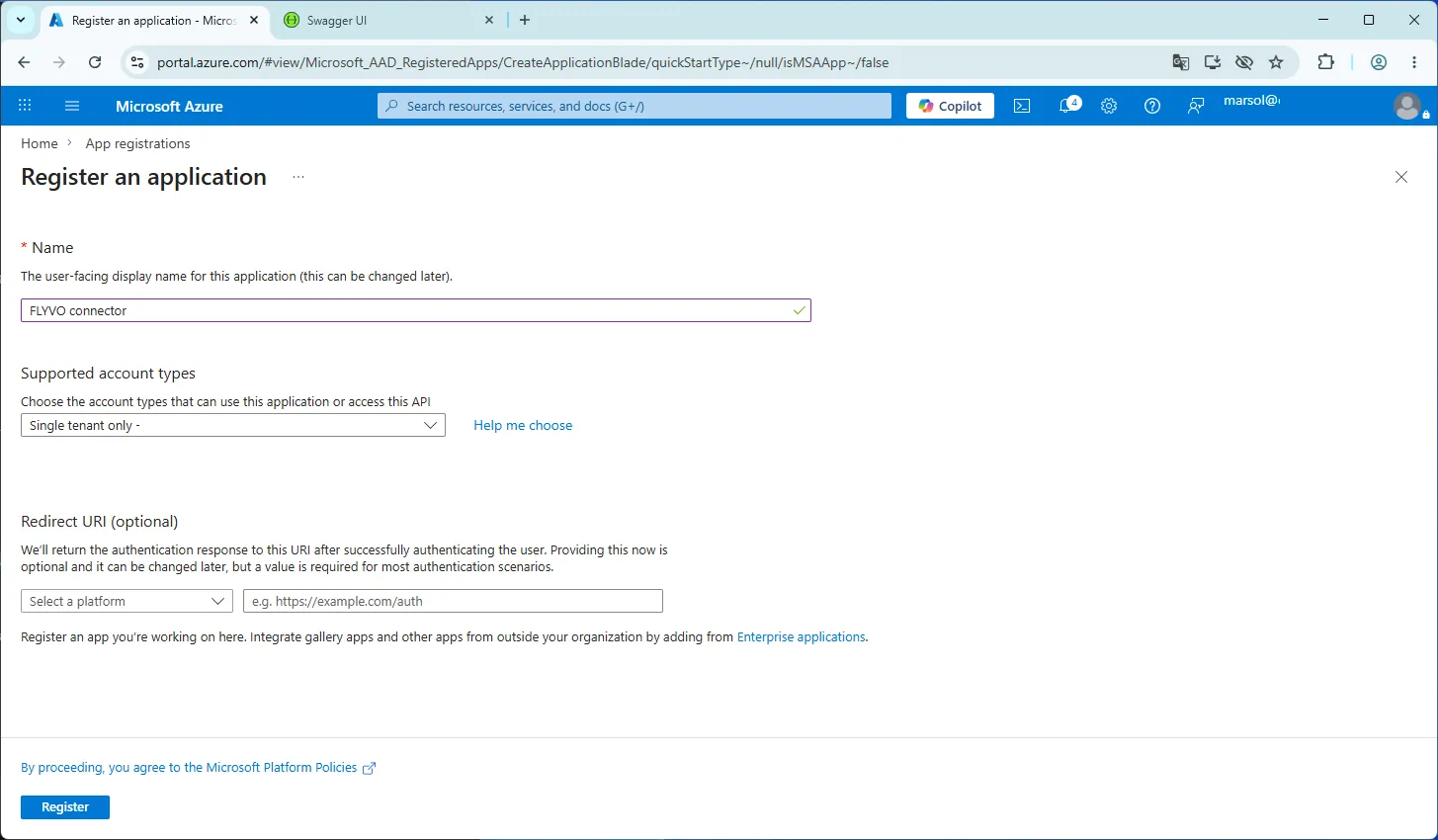
- Note down the Client ID and Tenant ID on the first page you get to after creating the app registration
- Go to Certificates & secrets, select Certificates and click Upload certificate
- Upload the exported .CER file from the PowerShell above
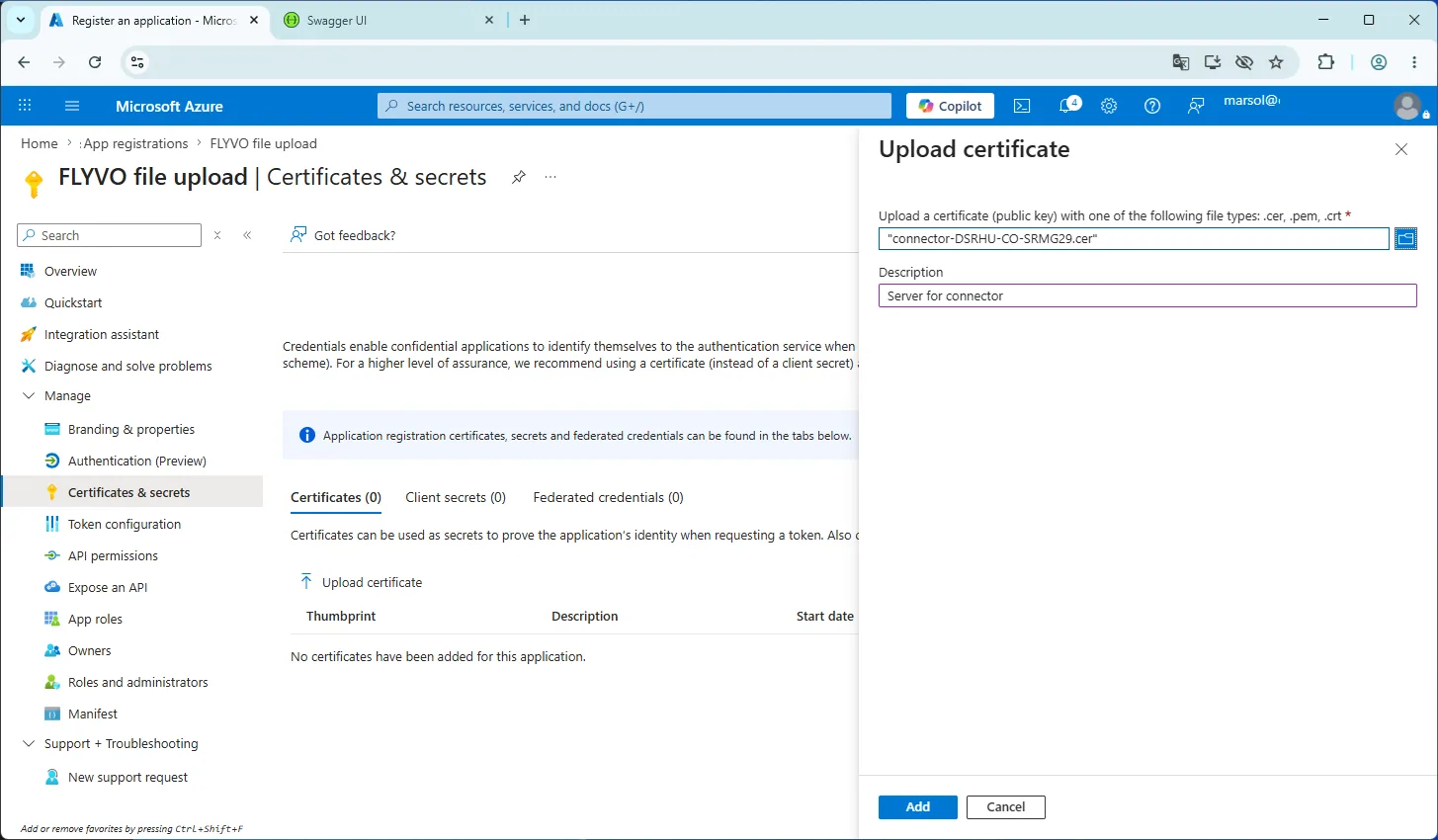
You have now configured authentication, and can authenticate to Fortytwo Universe as follows:
Add-EntraIDClientCertificateAccessTokenProfile -TenantId "TENANTID" -ClientId "CLIENTID" -Thumbprint "THUMBPRINT" -Scope "https://api.fortytwo.io/.default"