File upload
Certain first party based connectors is based on uploading files, because the source systems generate files on a schedule rather than having APIs. In order for this to be available, a connector template with file upload enabled must be used.
The Fortytwo.IAM.Core.Connector PowerShell module has support for uploading files, and required Entra ID authentication. Authenticating to the IAM Core connector APIs is done with a service principal, and is documented in the authentication documentation.
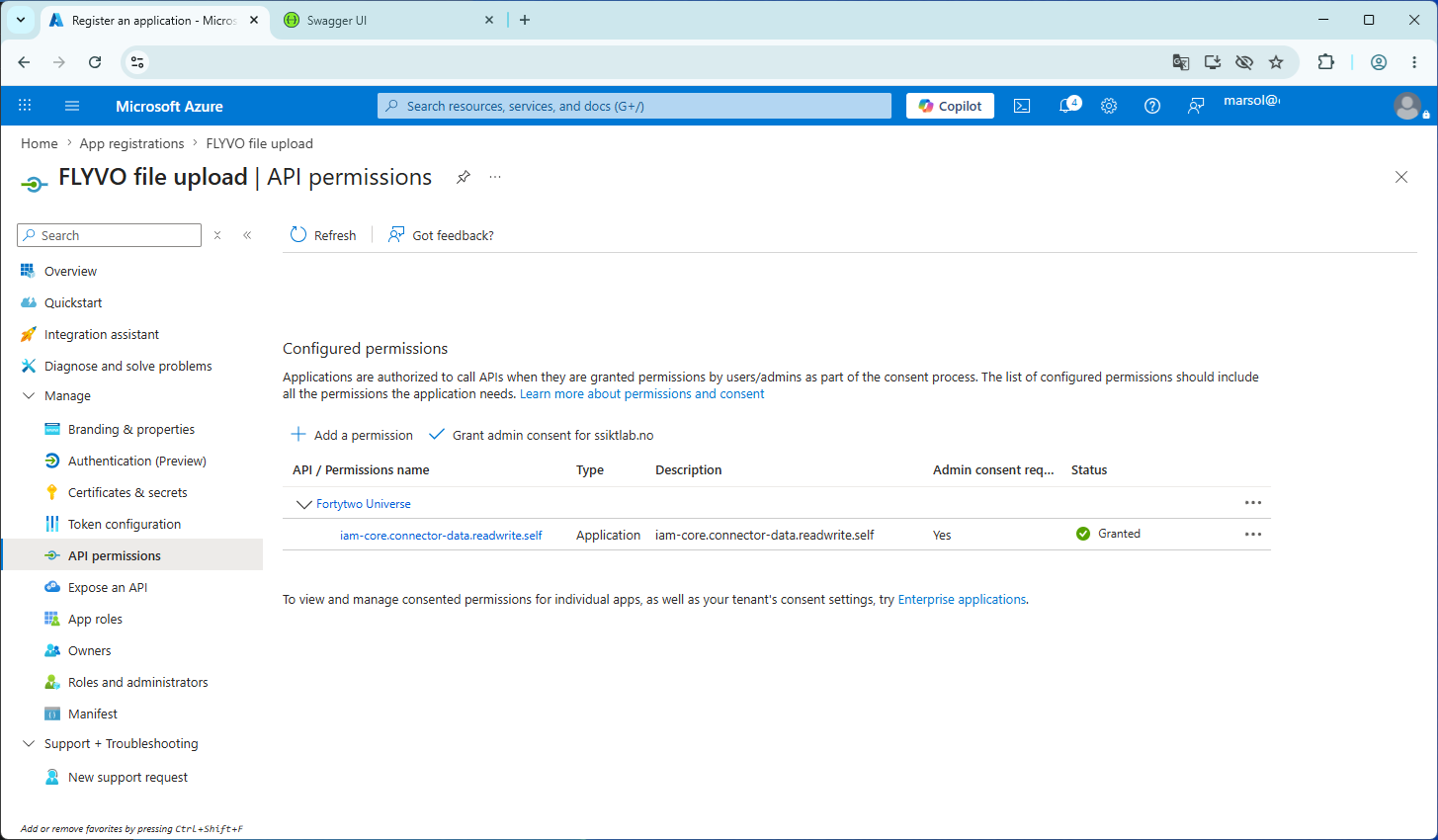
After completing the authentication documentation, add permissions as follows:
- On the app registration, find API permissions in the left menu and click + Add a permission
- Under APIs my organization uses, search for Fortytwo and select Fortytwo Universe (2808f963-7bba-4e66-9eee-82d0b178f408)
- Select Application permissions and choose iam-core.connector-data.readwrite.self
- After clicking Add permission, click Grant admin consent and make sure things look like this:
Example run.ps1
The below steps, requires that you have completed the authentication documentation and the above steps for adding permissions.
Create the following run.ps1 file on your server, and update the placeholders:
[CmdletBinding()]
Param(
    [Parameter(Mandatory = $false)]
    [ValidateScript({ Test-Path $_ -PathType Leaf })]
    [string] $Path = 'PLACEHOLDER_FILE_TO_UPLOAD',

    [Parameter(Mandatory = $false)]
    [ValidatePattern("^[0-9a-fA-F]{8}-[0-9a-fA-F]{4}-[0-9a-fA-F]{4}-[0-9a-fA-F]{4}-[0-9a-fA-F]{12}$")]
    [string] $ConnectorId = 'PLACEHOLDER_CONNECTOR_ID'
)

#region Use latest version of the Fortytwo.IAM.Core.Connector module
$_available = Get-Module -ListAvailable | Where-Object Name -eq 'Fortytwo.IAM.Core.Connector'
if (!$_available) {
    Install-Module Fortytwo.IAM.Core.Connector -Scope CurrentUser -Force -Confirm:$false -Verbose
}
else {
    $_find = Find-Module Fortytwo.IAM.Core.Connector
    if (!($_available | Where-Object Version -ge $_find.Version)) {
        Update-Module Fortytwo.IAM.Core.Connector -Verbose -Confirm:$false -Force
    }
}
#endregion

#region Connect the module using an available method (Might need to be updated)
Add-EntraIDClientCertificateAccessTokenProfile -TenantId "PLACEHOLDER_TENANT_ID" -ClientId "PLACEHOLDER_CLIENT_ID" -Thumbprint "PLACEHOLDER_THUMBPRINT" -Scope "https://api.fortytwo.io/.default" -Name Connector
Connect-Connector -ConnectorId $ConnectorId -AccessTokenProfile Connector -Environment development
#endregion

#region Upload file
$Tempfile = New-TemporaryFile
$Tempfile = $Tempfile.FullName + ".zip"

Write-ConnectorVerbose -Text "$($ENV:COMPUTERNAME): Creating $Tempfile"
try {
    Compress-Archive -Path $Path -DestinationPath $Tempfile
}
catch {
    Write-ConnectorError -Text "$($ENV:COMPUTERNAME): Failure during zip creation: $_" -InnerException $_ -Throw
}

Write-ConnectorVerbose -Text "$($ENV:COMPUTERNAME): Uploading $Tempfile"
try {
    Send-ConnectorFile -Path $Tempfile -Verbose
    Write-ConnectorVerbose -Text "$($ENV:COMPUTERNAME): Successfully uploaded $Tempfile"
}
catch {
    Write-ConnectorError -Text "$($ENV:COMPUTERNAME): Failure during upload: $_" -InnerException $_ -Throw
}

Remove-Item $Tempfile -Force -Confirm:$false
#endregion