Apps
Build
Two ways to change an app, both working on the same code. In your browser with Studio, or in the coding tool you already use.
On this page
Open an app and choose the Build tab: Two ways to change this app, both working on the same code.
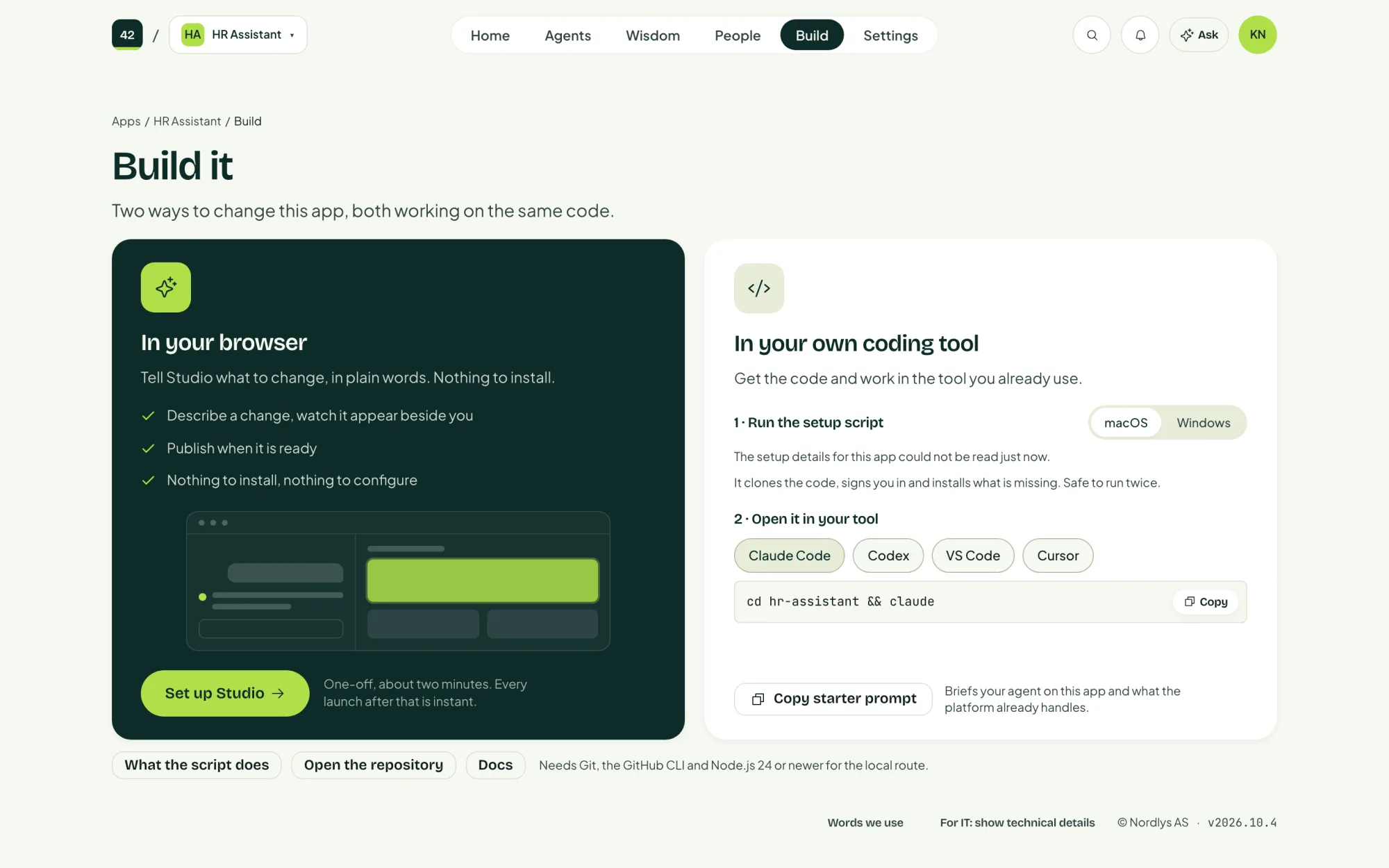
Tell Studio what to change, in plain words, and watch it appear beside you. Publish when it is ready. Nothing to install.
Get the code and work in Claude Code, Codex, VS Code or Cursor.
In your browser with Studio
Choose Set up Studio the first time. It is a one-off that takes about two minutes, and every launch after that is instant.
In your own coding tool
Run the setup script
Choose your operating system, then Download setup script or copy the one-line command. The script:
- checks for the tools it needs and offers to install any that are missing
- signs you in to GitHub through your browser, so git can clone and push
- asks for a folder and clones the app's repository into it
It is safe to run twice.
Open it in your tool
Choose your coding tool and copy the command that opens the app in it.
Brief your coding assistant
Copy starter prompt briefs your AI coding assistant on this app and on what the platform already handles, such as sign-in and the AI gateway. Your organisation's Wisdom is loaded as well.
Publishing changes
A new app runs the platform's starter version. To ship your own code, publish a release in the app's repository on GitHub. GitHub Actions builds it and deploys it to your Azure subscription. The app's Home tab shows under What is running which release is live.