Control panel
Home
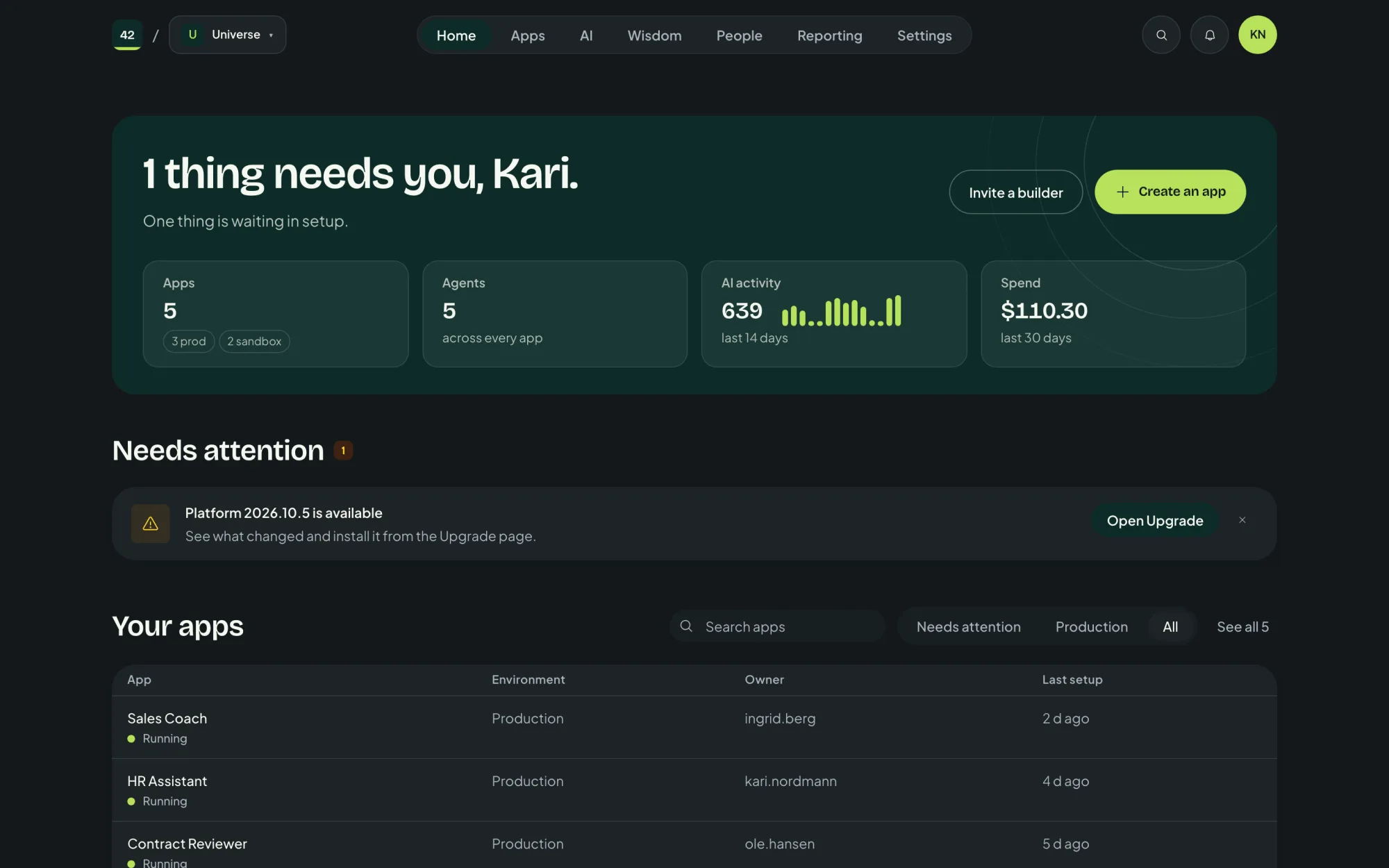
The control panel home shows what needs you, how much AI is being used, and your apps at a glance.
On this page
The control panel opens on Home. The first line tells you how things are, for example 1 thing needs you, Kari., or that everything is running.
What it shows
| Section | What you see |
|---|---|
| At a glance | Apps (production and sandbox), agents across every app, AI activity over the last 14 days and spend over the last 30. |
| Needs attention | What is waiting for you, such as a new platform version with Open Upgrade. |
| Your apps | Your apps, filtered by Needs attention, Production or All, with See all for the full list. |
From the top you can also Create an app, or Invite a builder to let a colleague in who will create apps.
The tabs
Administrators see these tabs across the top:
| Tab | What it is for |
|---|---|
| Home | This page. |
| Apps | Every app, in a list or as cards, with filters by status, owner and department. See Create an app. |
| AI | Models, safety rules and pausing all AI. See AI and models. |
| Wisdom | Rules for AI coding assistants. See Wisdom. |
| People | Who can sign in to the control panel. See People. |
| Reporting | Cost, Compliance and Security. See Governance. |
| Settings | The platform's own settings. See Settings. |
People who are not administrators see their own apps and the help pages.
Switching to an app
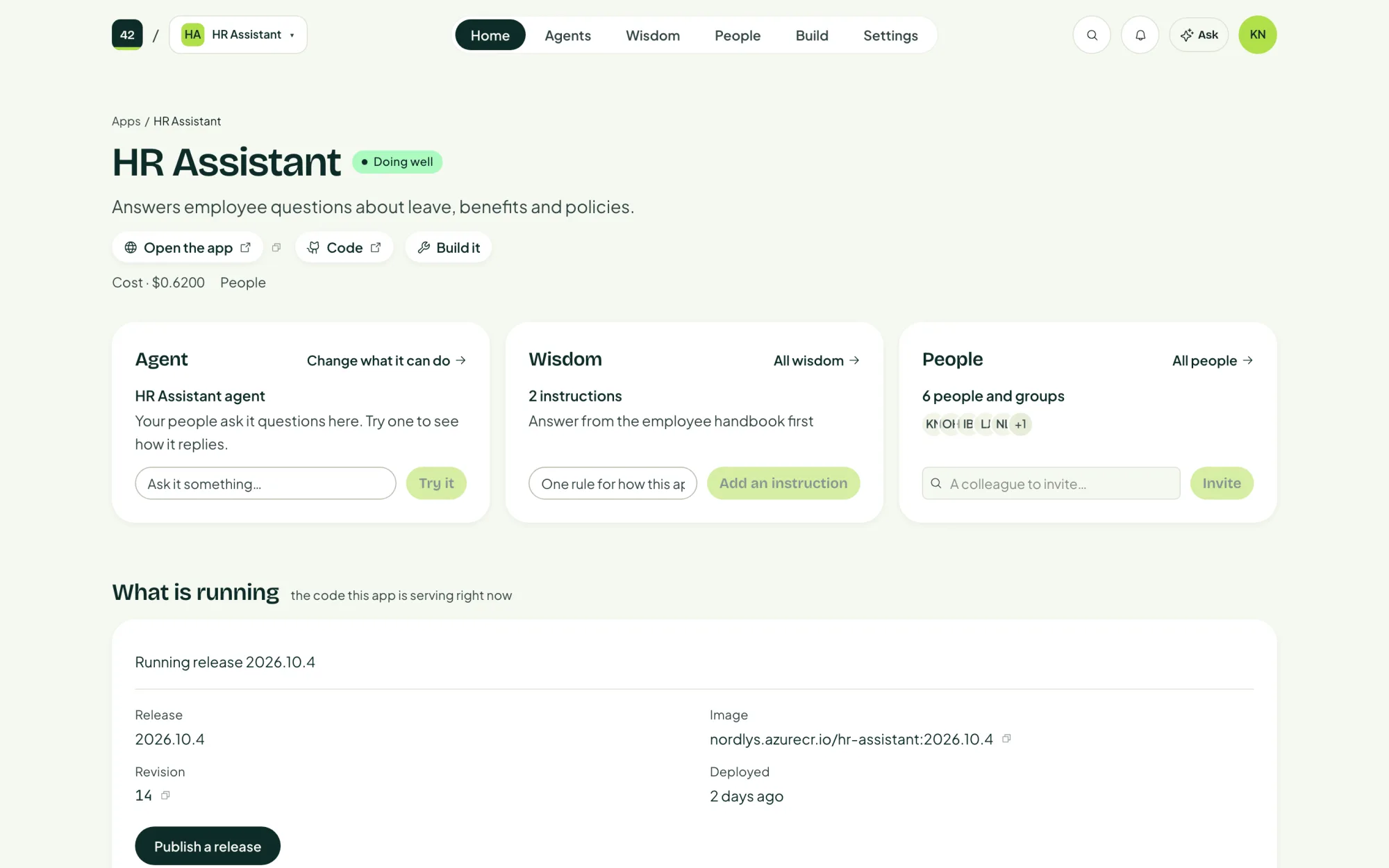
The switcher next to the logo, showing Universe, moves between the control panel and the apps you manage. In an app, the tabs change to that app's own: Home, Agents, Wisdom, People, Build and Settings.
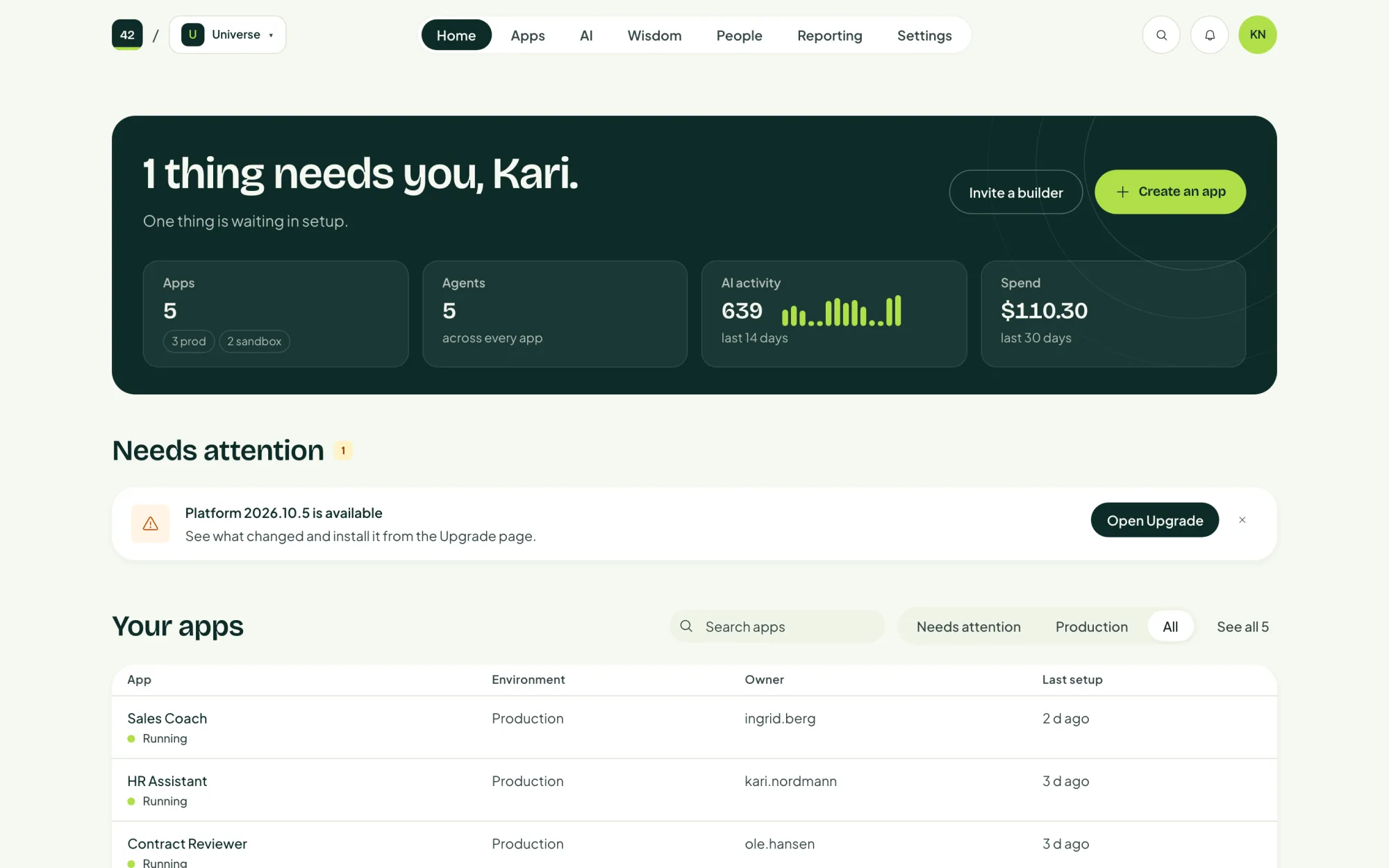
Everything works in dark mode too. Switch under Appearance in the account menu.