Control panel
AI and models
Choose which AI models your agents may use, set the safety rules every question and reply passes through, and pause all AI with one switch.
On this page
The AI tab decides which AI your agents may use, and the rules every question and reply passes through.
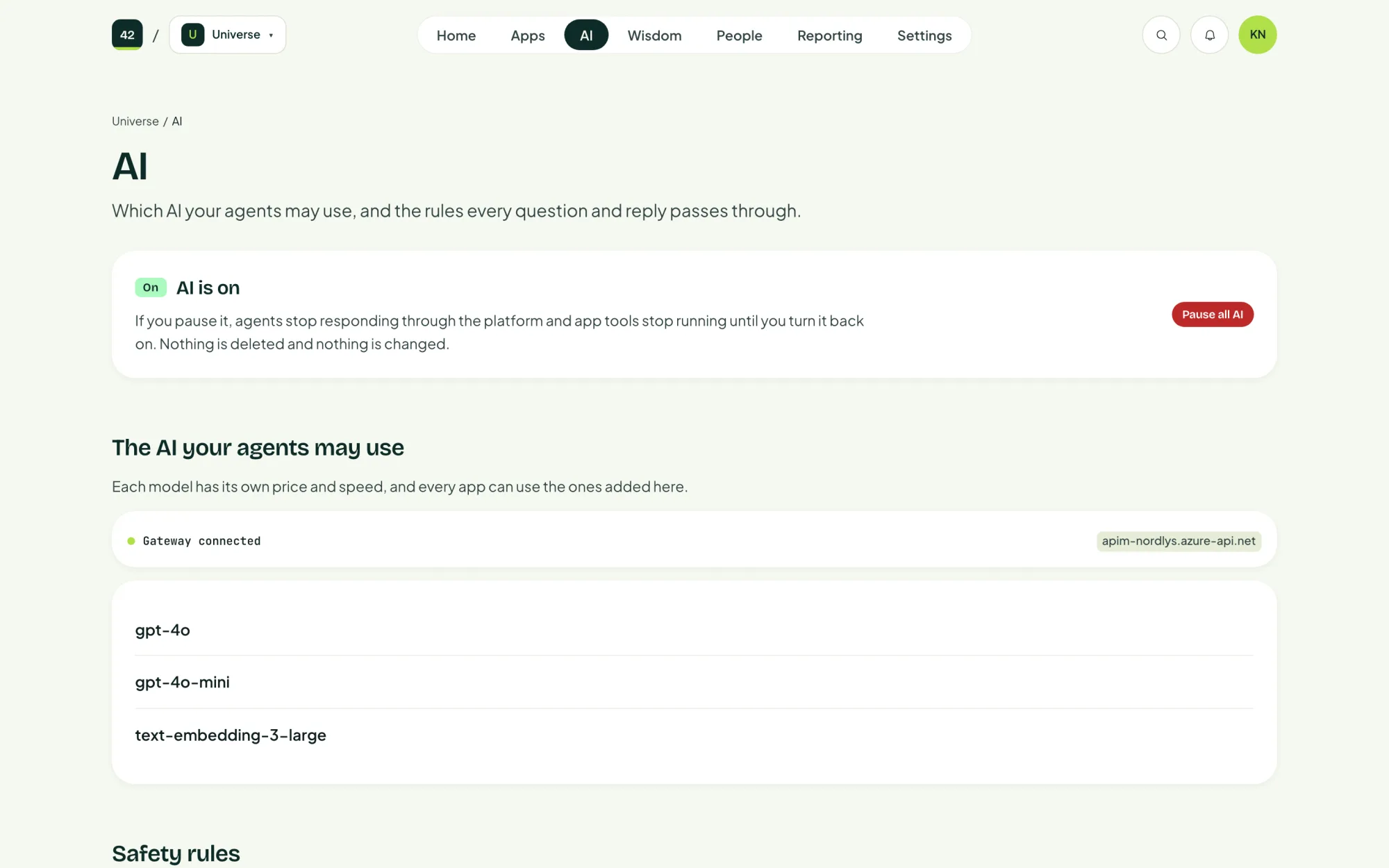
Models
The AI your agents may use lists the models deployed in your Microsoft Foundry. Each model has its own price and speed, and every app can use the models added here.
Until at least one model is added, agents have nothing to run on. To add one, turn on Technical details in the account menu (see First sign-in) or ask whoever runs the platform.
Gateway settings holds the technical side of the AI gateway: the models it serves, token limits and how long records are kept.
Safety rules
Every question and reply is checked for four kinds of harmful content: hate, violence, sexual content and self-harm. Choose how strict the check is:
| Level | What it blocks |
|---|---|
| Strict | Anything mildly harmful and up. Fewest surprises, most false alarms. |
| Balanced | Clearly harmful content. What most organisations run. |
| Relaxed | Only the severe cases. For teams whose work involves difficult material. |
To set the four kinds to different levels, choose Set each kind separately.
The page also counts the replies blocked in the last thirty days. Each one is a question the rules stopped, not a fault.
Pause all AI
Pause all AI is the platform's off switch. While AI is paused:
- agents stop responding in every app
- app tools stop running
Nothing is deleted and nothing is changed. You are asked to confirm first.
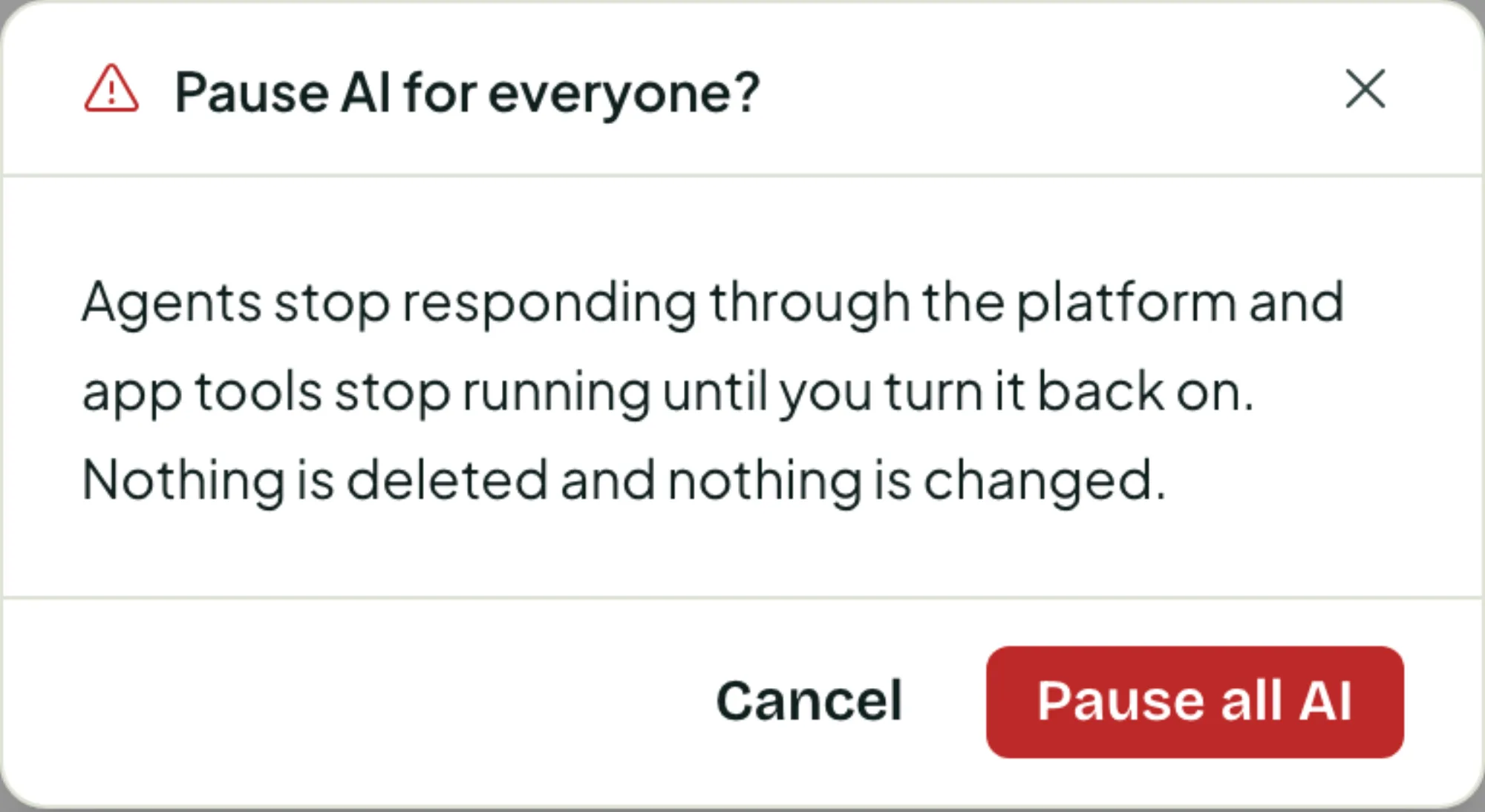
While paused, the page shows AI is paused. Turn AI back on restores everything as it was.
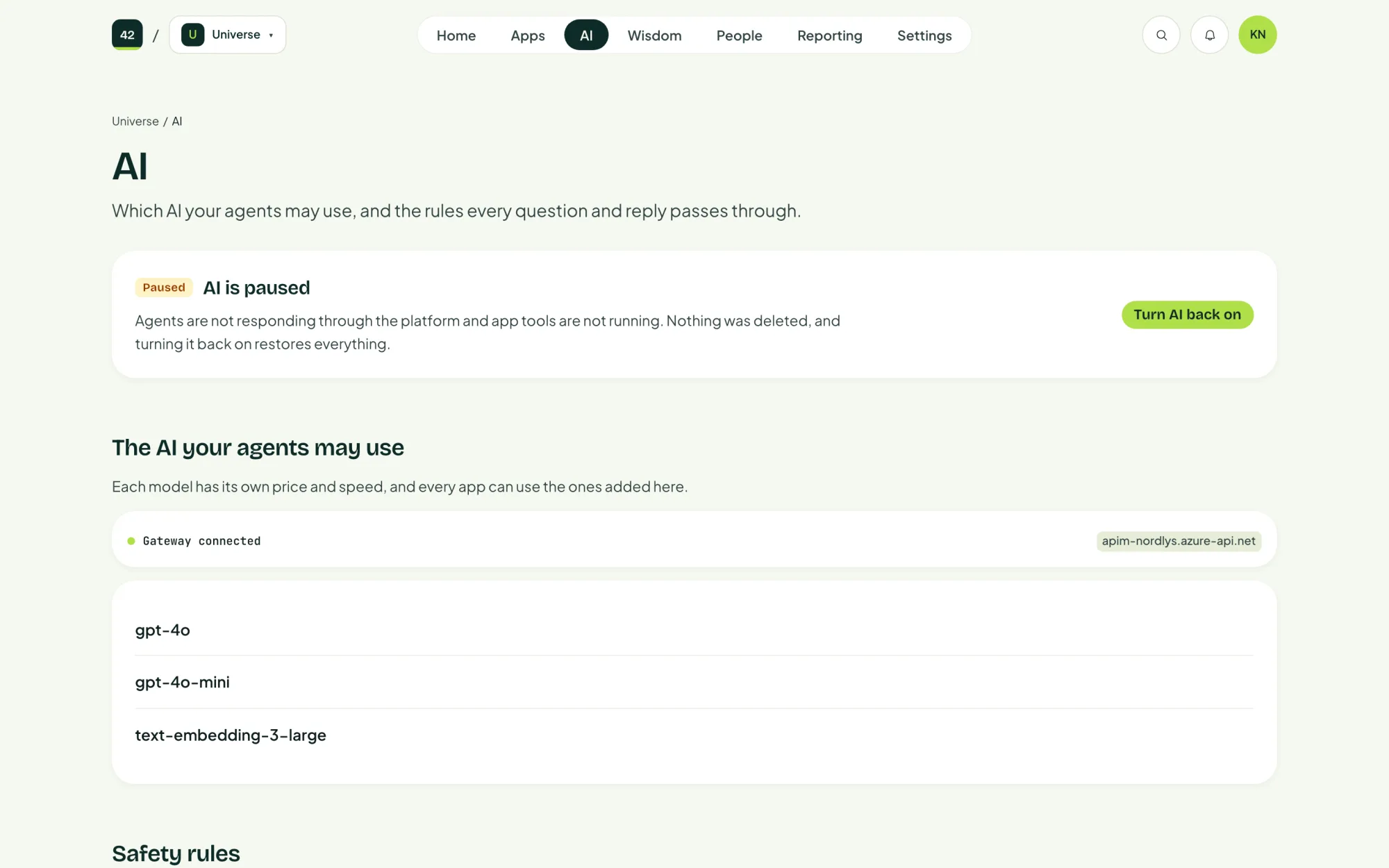
Pausing is meant for incidents, for example if you suspect misuse. It stops AI in every app at once. To stop one app's agent, change that app's Agents settings instead.