Get started
Connect GitHub
Every app lives in its own GitHub repository. The setup guide connects the platform to your GitHub organisation in four short steps.
On this page
Each app has its own repository, with its code, its history and its deployments. The platform creates that repository when you create an app, so it needs a connection to your GitHub organisation first.
Until GitHub is connected, apps cannot be created, and the home page says Connect GitHub so apps can be built.
A personal GitHub account cannot hold an app's code. Connect the platform to a GitHub organisation. You need to be an owner of that organisation, or have one at hand.
Connect it
The setup guide walks you through it. Open it from Setup guide in the account menu if it is not already open.
Create the GitHub App
Connect your GitHub organisation: choose Continue on GitHub. GitHub opens in a new tab and asks you to create a GitHub App for your platform. Create it.
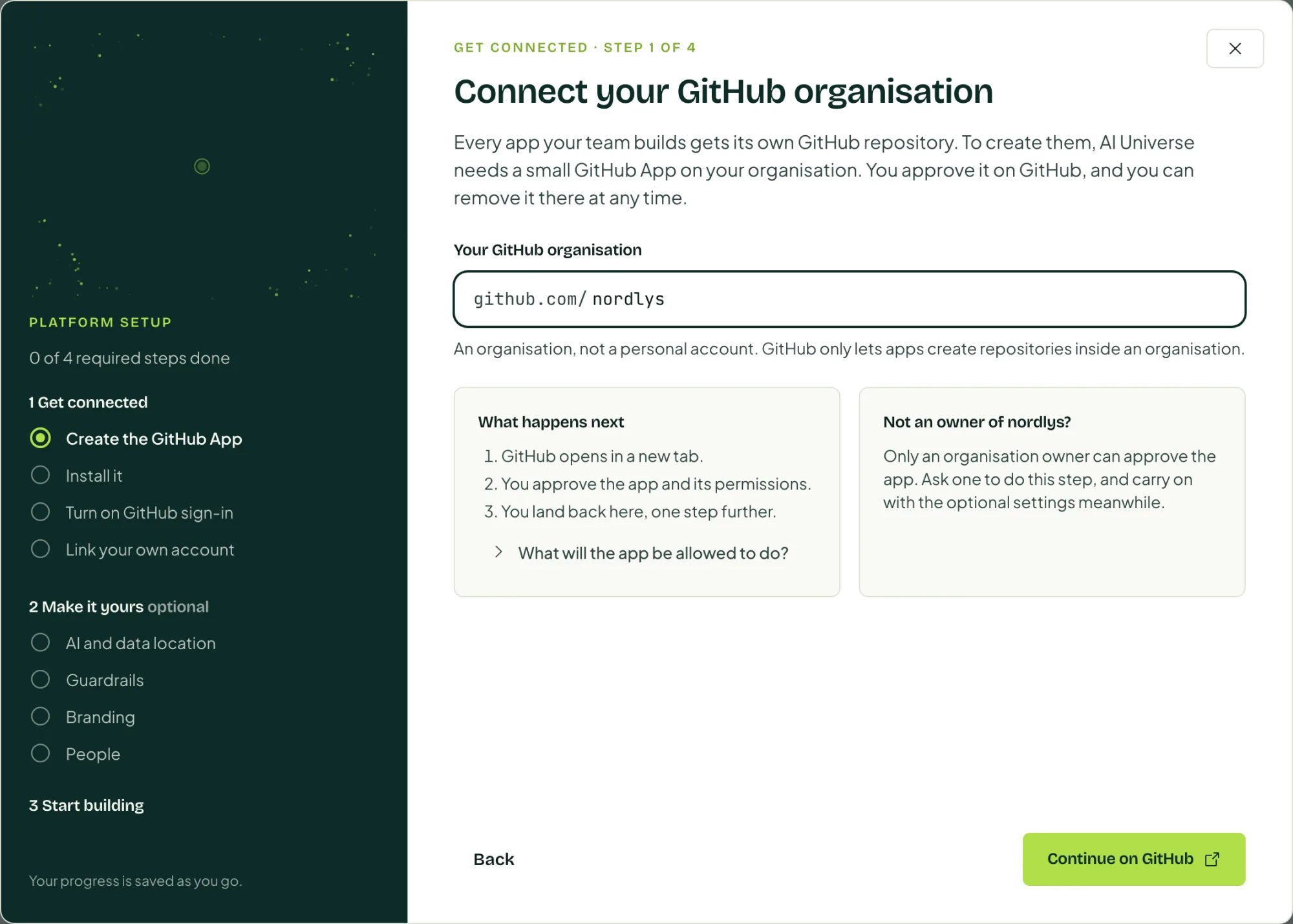
Come back from GitHub
The guide waits with Finish up in the GitHub tab until GitHub is done, then moves on by itself.
Install it on your organisation
Now install it on your organisation: choose Install on GitHub, approve the installation, then choose I've installed it.
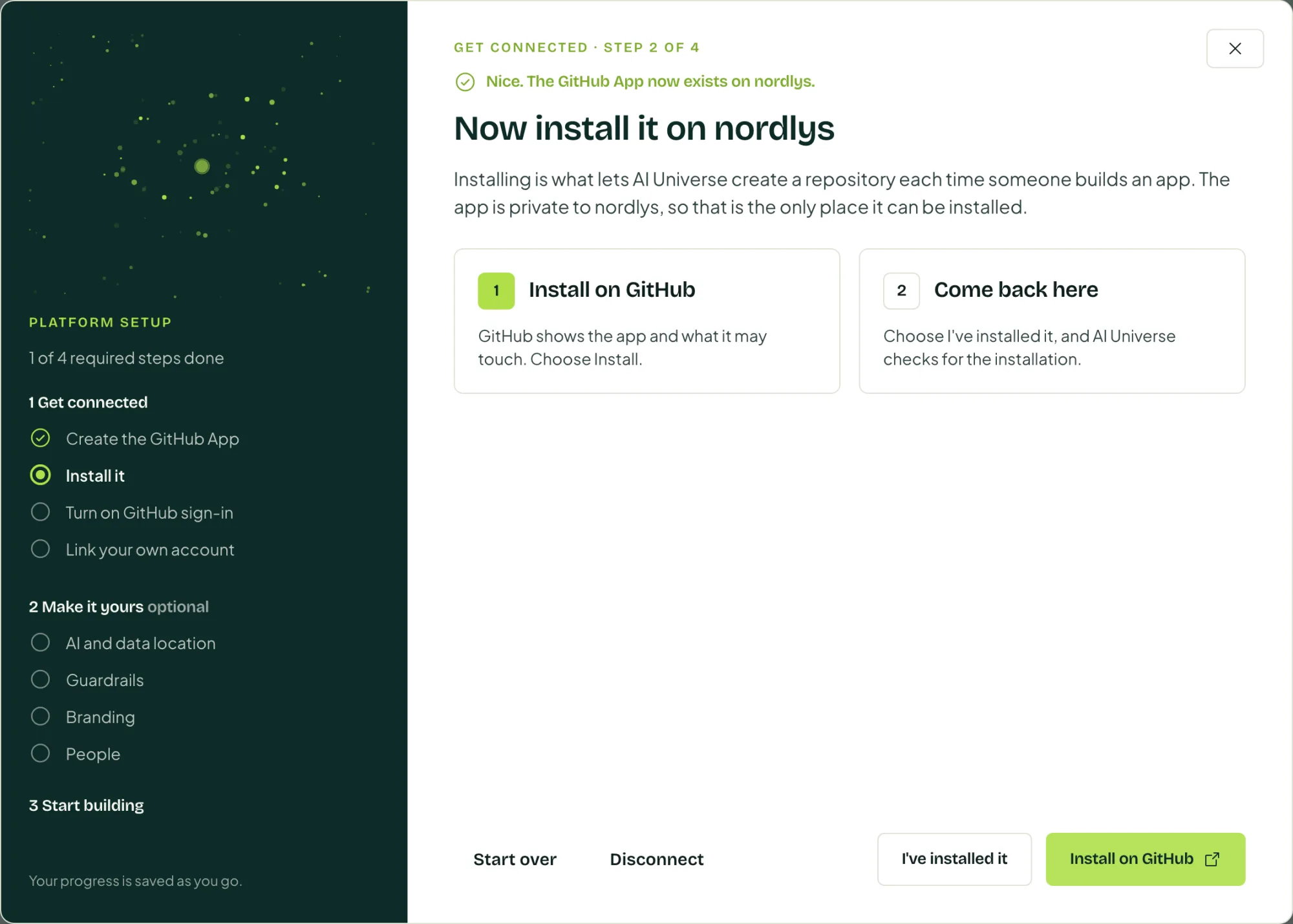
Link your own GitHub account
Last one: link your own GitHub account: choose Link my GitHub account. This lets the platform give you access to the repositories of the apps you build.
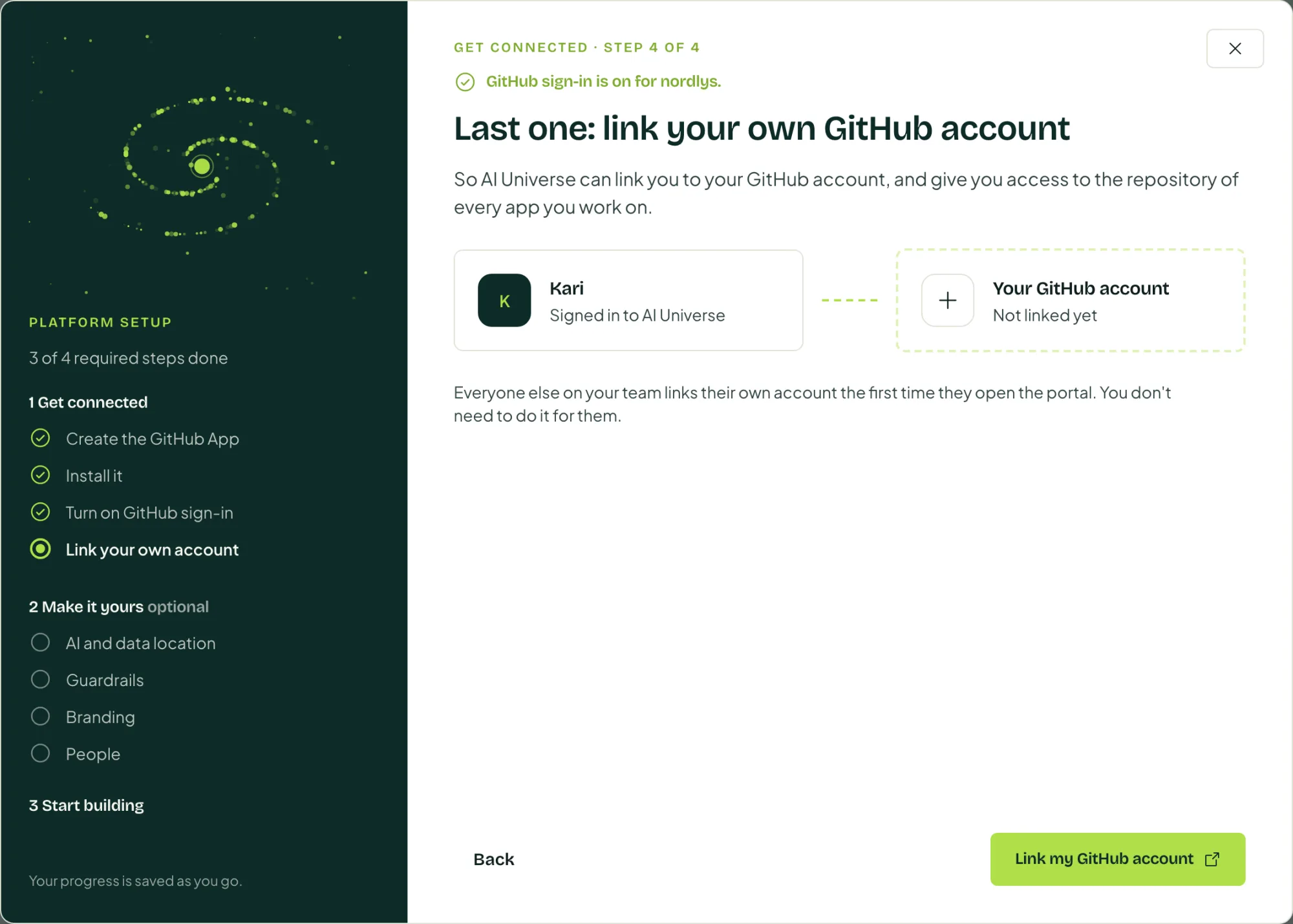
Check or change the connection
The connection is shown under Settings, Provisioning, on the GitHub App card. Use Reconnect or Disconnect there.
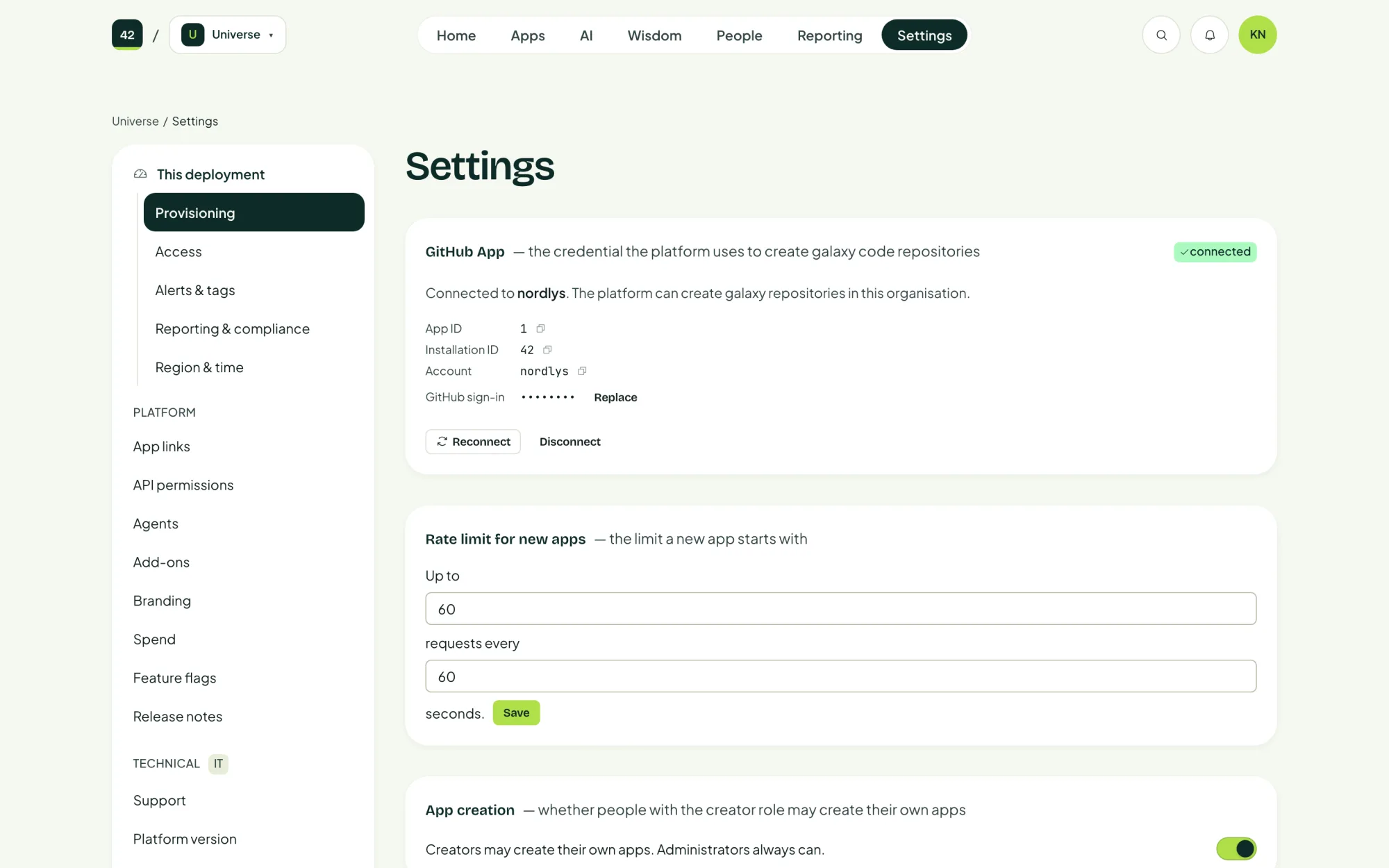
What the platform does with it
- Creates one repository per app, from Fortytwo's app template.
- Sets up GitHub Actions in that repository, so the app deploys to your Azure subscription. Actions sign in to Azure without any stored secret.
- Turns on Dependabot alerts and security updates. See Vulnerabilities.