Entra ID SCIM
In order for users to be able to talk to the Fortytwo Universe, we need to identify them. This is done by matching the oid claim in the Entra ID access token, to a CoreIdentity's attribute entraObjectId. In order to populate this attribute, the most common solution is to configure Entra ID outbound SCIM provisioning, which takes care of populating a connector space with all relevant data from Entra ID.
Pre-reqs:
- An attribute with the CoreIdentity's
idattribute set, either through syncing from AD or directly in Entra ID (when doing cloud only provisioning). When provisioning in AD, we recommend usingmsDs-cloudExtensionAttribute19as this attribute.
Steps
!!! note "If you need the onPremisesSamAccountName attribute, you will need to use the Entra ID Inbound connector
Create connector in IAM Core
No user interface available yet
Please follow the Authenticating PowerShell documentation in order to have a working PowerShell connection
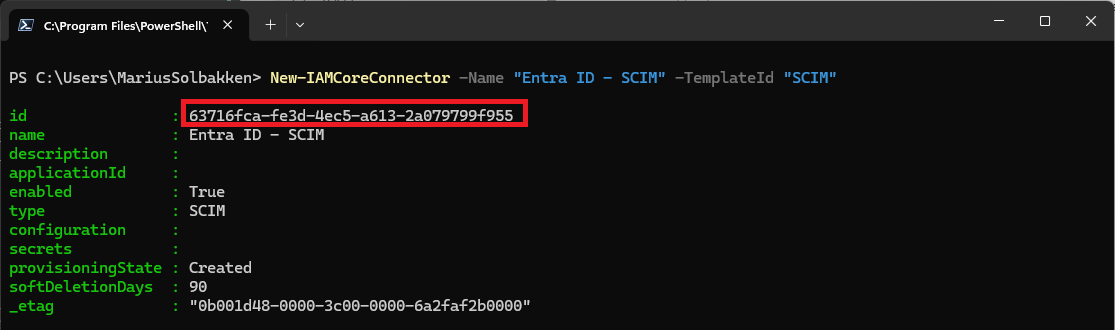
Create a new connector using the below cmdlet:
Copy the id, which will be used later:
Scoping group
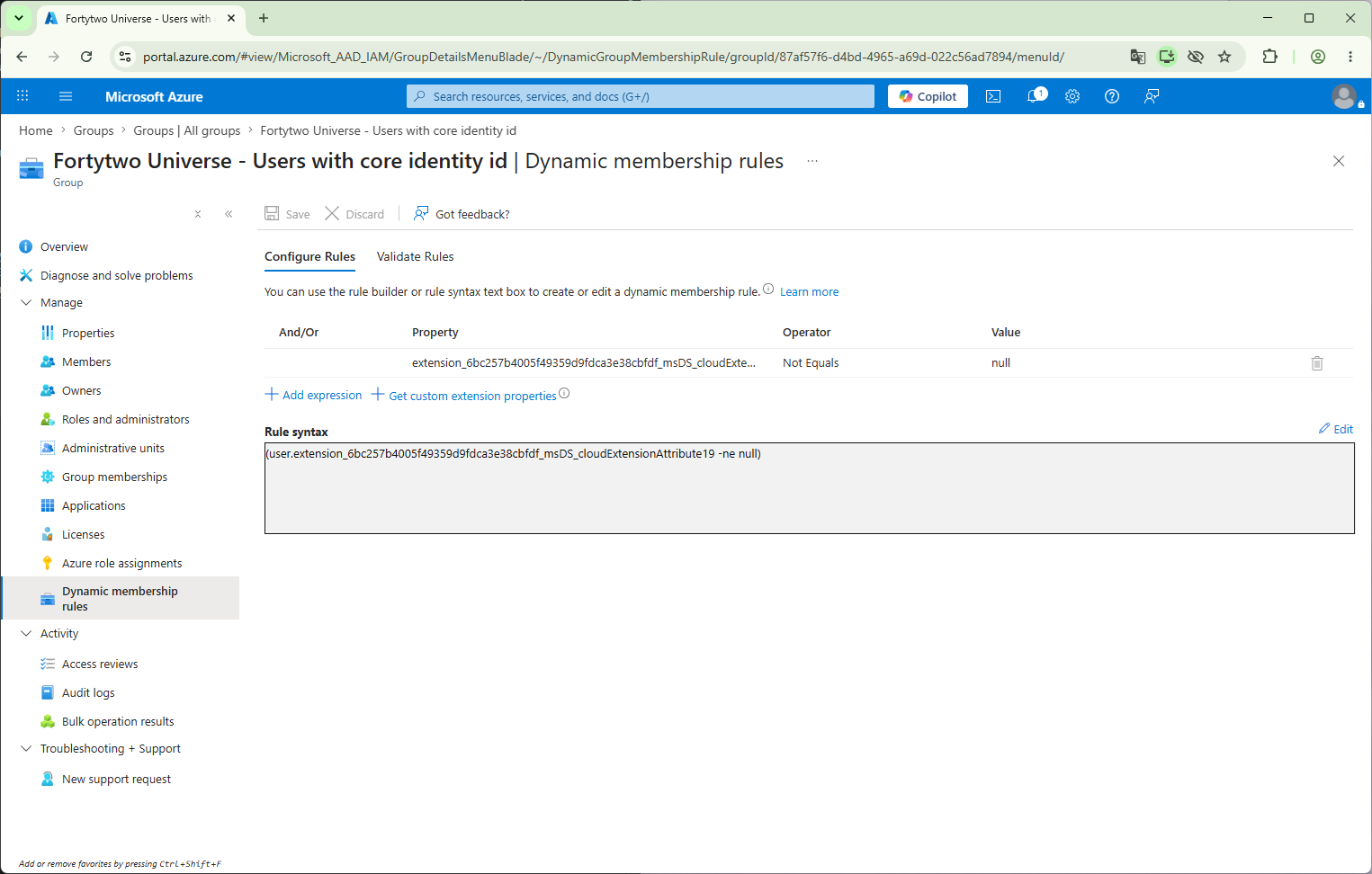
In order to scope the outbound SCIM provisioning to only the users that have a CoreIdentity id set, we create a criteria group in Entra ID with the following criteria, where the value 6bc257b4005f49359d9fdca3e38cbfdf comes from an extension app created by Entra ID Connect Sync for provisioning additional attributes from AD. See this documentation for our recommended hybrid configuration and how to determine the value of the property.
Example group:
SCIM Application
We want to use a multi tenant app, but we can't
"We are actively trying to get a multi tenant app registered for this purpose, but as of June 2026 Microsoft is still not accepting any new registrations for these types of applications due to their secure future initiative."
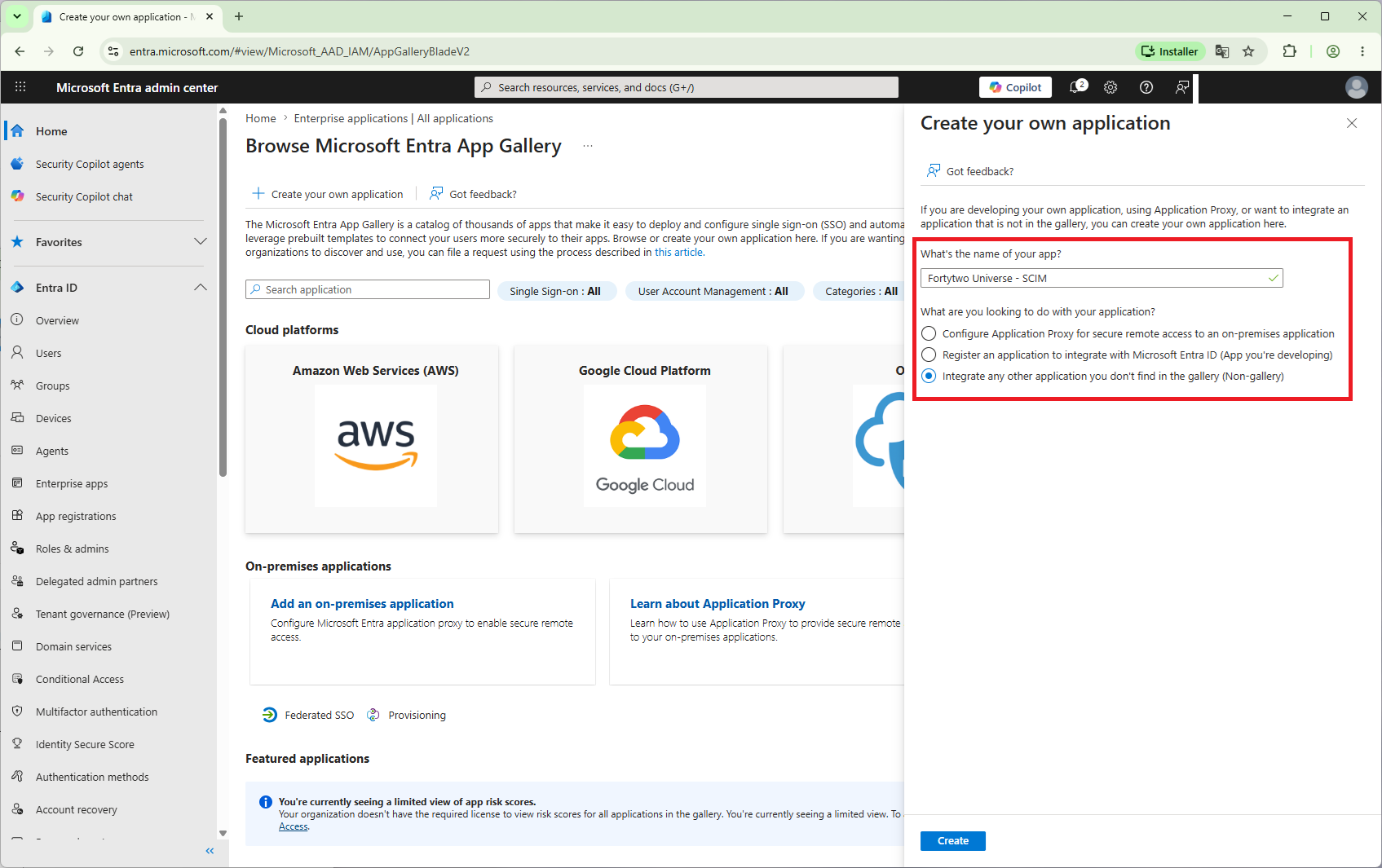
- Go to the Entra admin center and find Enterprise apps in the left menu
- Click + New application and + Create your own application
- Name the application something that makes sense to you, such as Fortytwo Universe - SCIM and choose Integrate any other application you don't find in the gallery (Non-gallery).
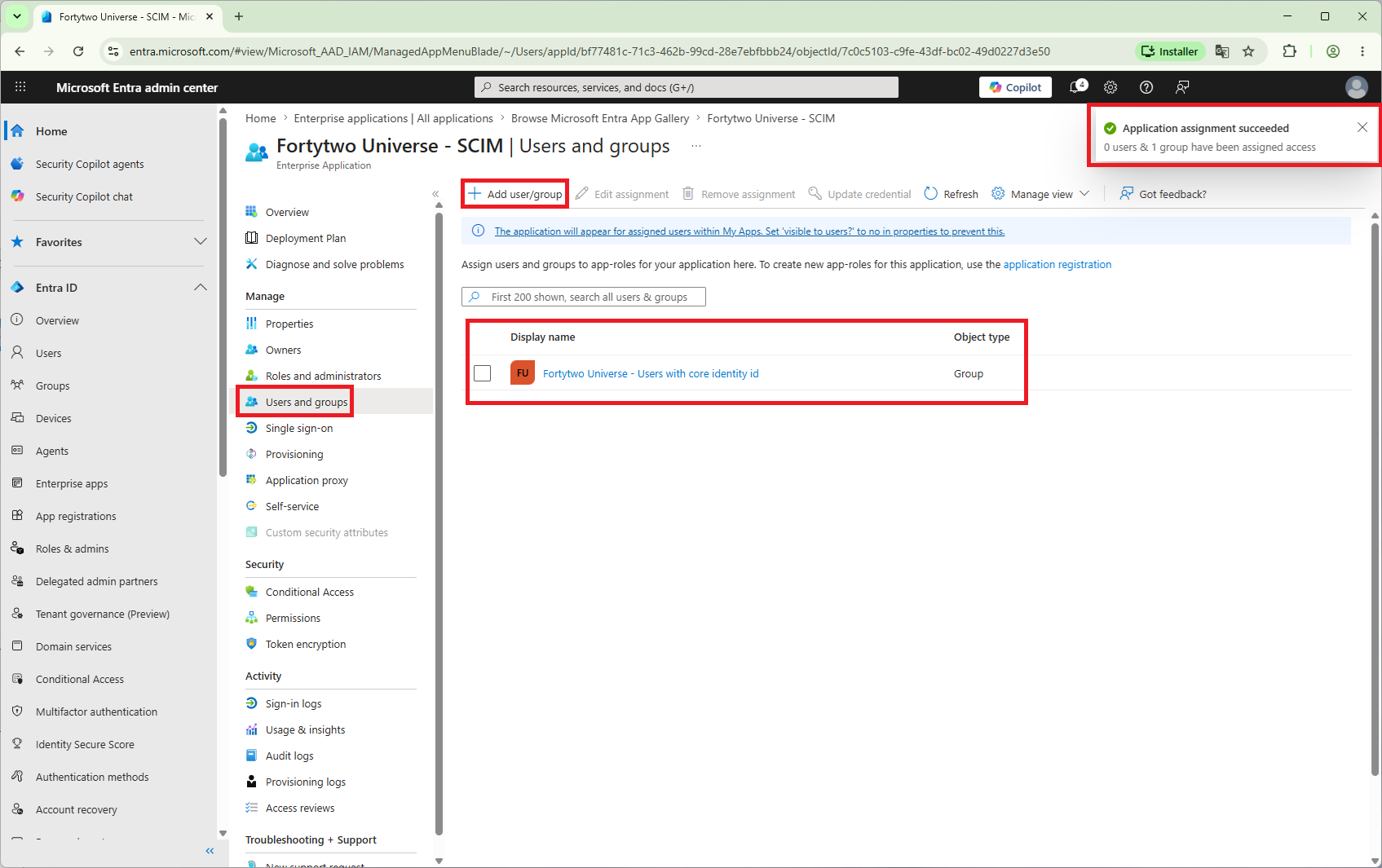
- After creating the application, go to Users and groups and assign the scoping group that we created earlier:
- Go to Provisioning in the left menu and click + New configuration
- Use the url https://api.fortytwo.io/iamcore/beta/sync/connectors/<CONNECTORID>/scim/, replacing <CONNECTORID> with the connectorid from the creation of the connector.
Example value: https://api.fortytwo.io/iamcore/beta/sync/connectors/bdb7024d-555e-46cc-886f-a7ea847dc059/scim/
- Click Test connection to validate the connection
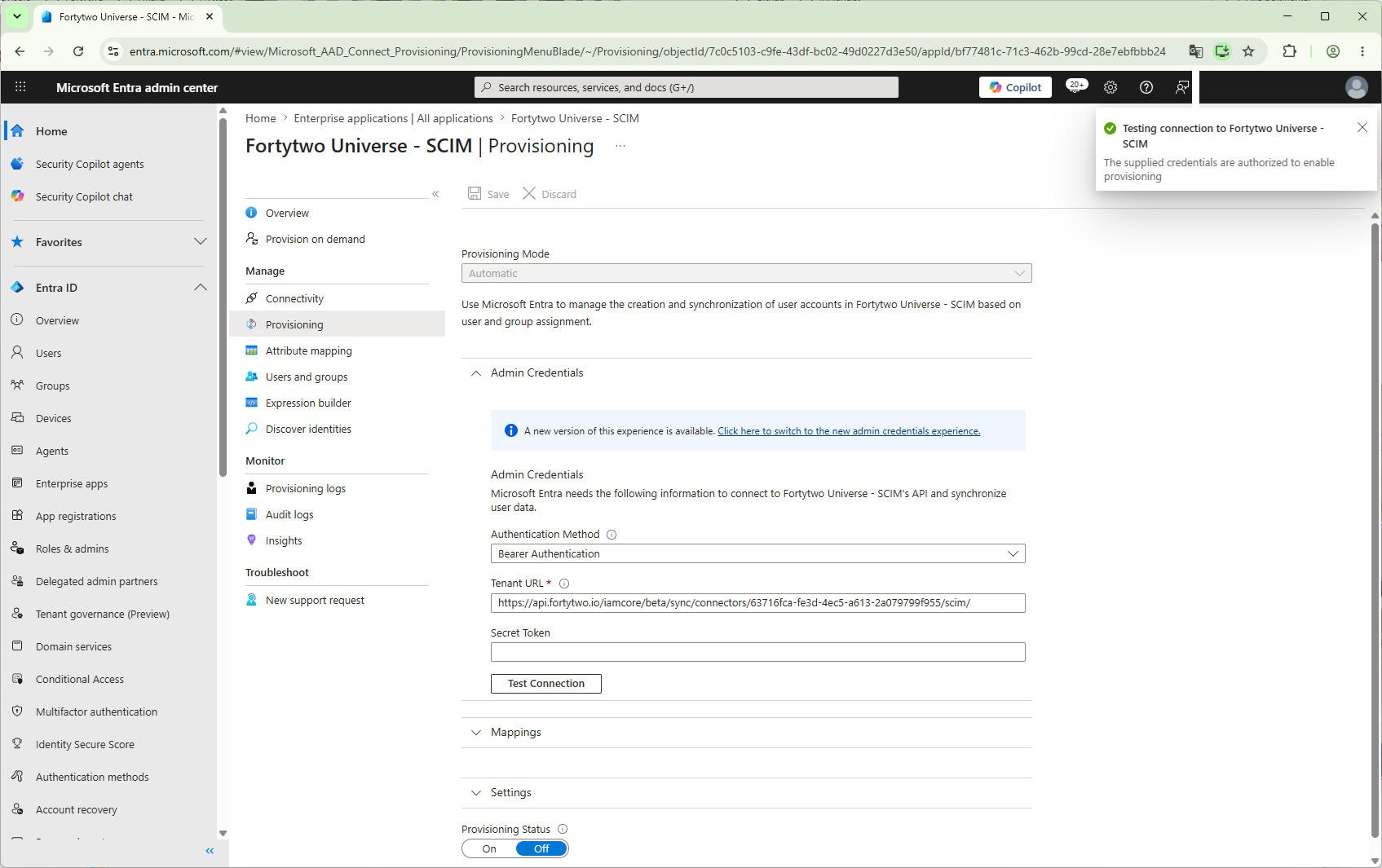
- After testing the connection, save the configuration.
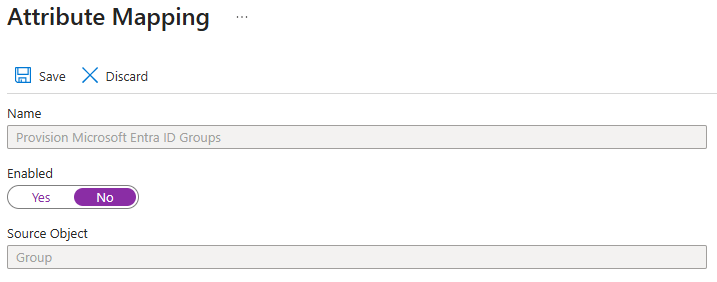
- After saving, find Mappings and edit the Provision Microsoft Entra ID Groups mapping and disable it:
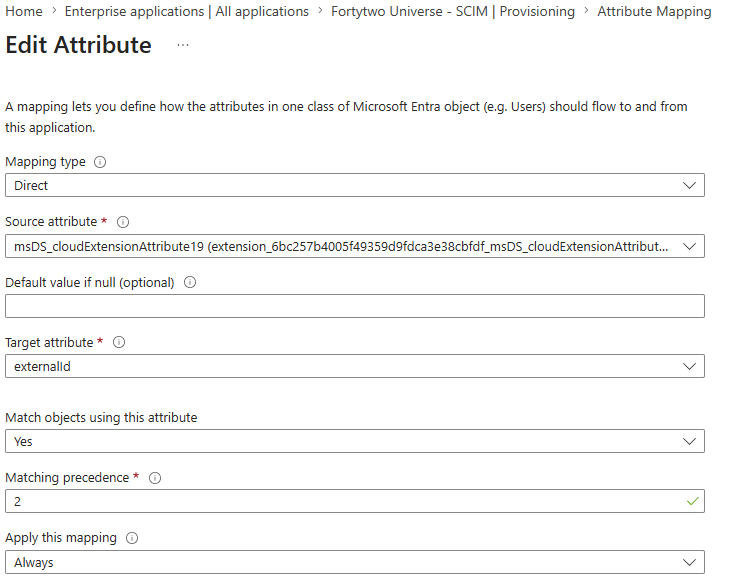
- Edit the mapping Provision Microsoft Entra ID Users
- Find the mapping to the externalId attribute, and change to being synced from
msDs-cloudExtensionAttribute19and having matching precedence of 2
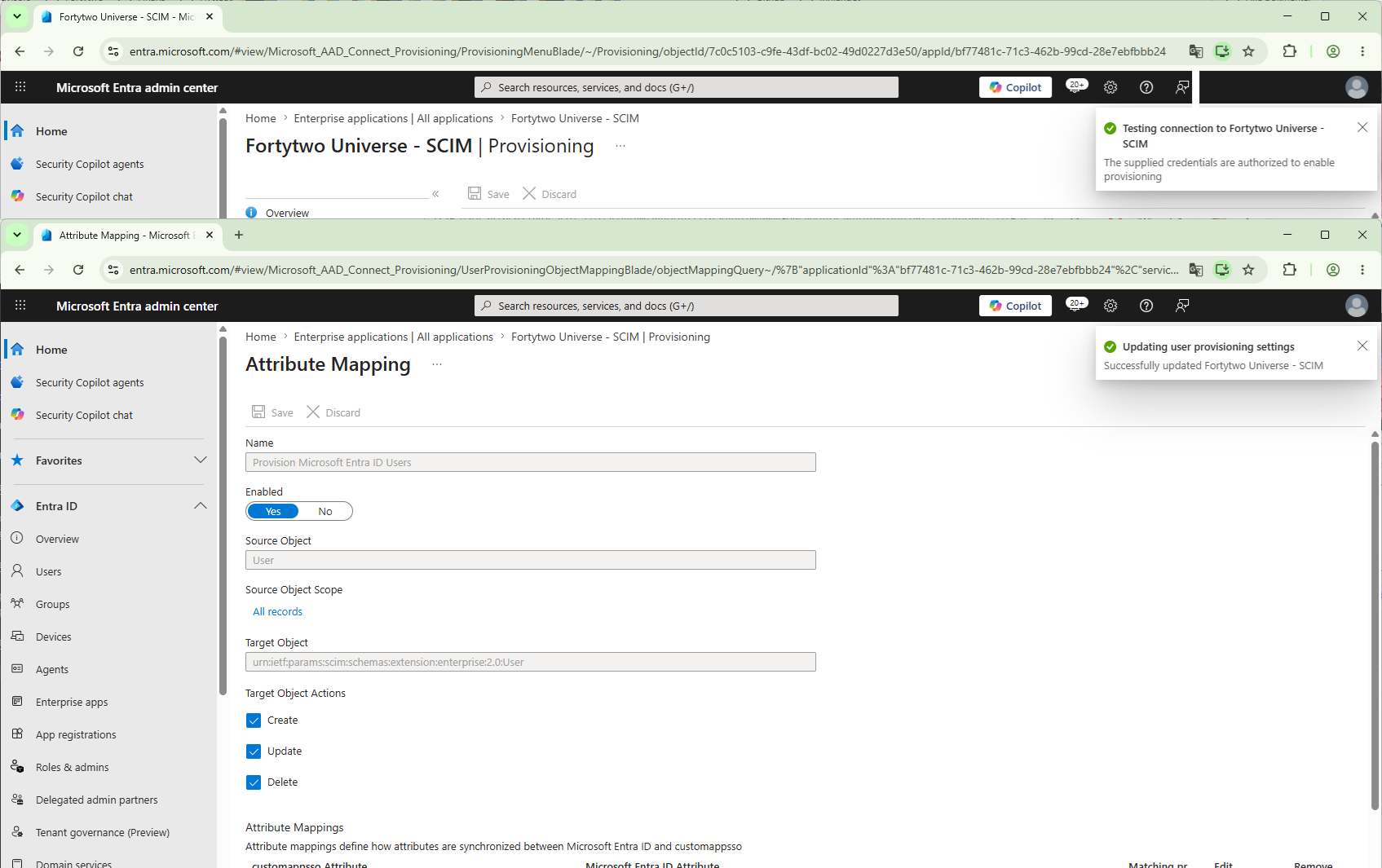
- Save
- We can now test a single user, by using the Provision on demand feature in the left menu
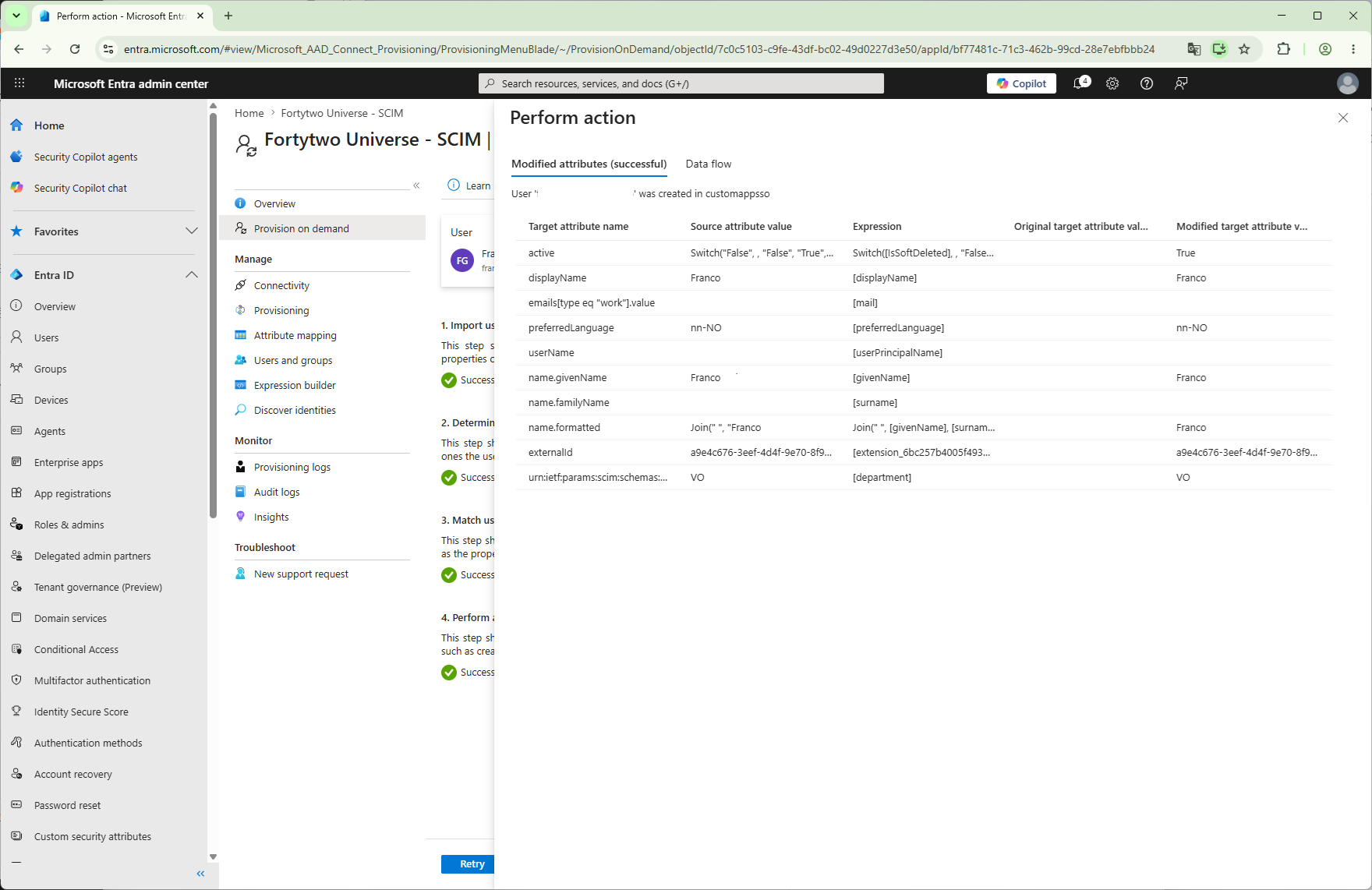
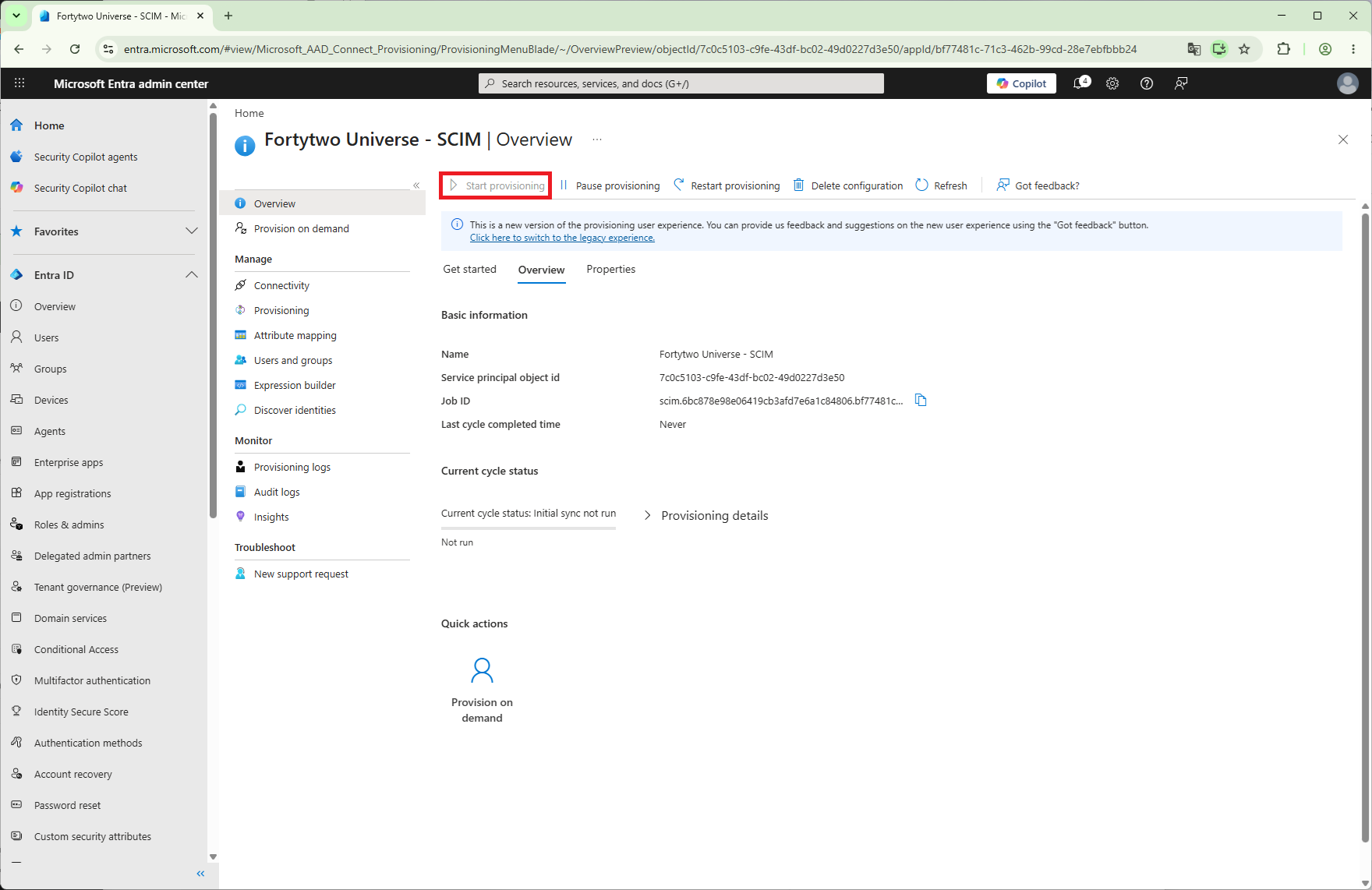
- After verifying that we can export one user, we can go to the overview and click Start provisioning. This takes some time, both to start on the Entra side, and to populate the API.
Sync rules
$InboundAttributeFlows = @(
    @{
        '$type'             = "string"
        targetAttributeName = "id"
        joinPriority        = 1
        value               = @{
            '$type'   = "attribute"
            attribute = "nickName"
        }
    }

    @{
        '$type'             = "string"
        targetAttributeName = "entraUserPrincipalName"
        value               = @{
            '$type'   = "attribute"
            attribute = "userName"
        }
    }

    @{
        '$type'             = "string"
        targetAttributeName = "entraObjectId"
        value               = @{
            '$type'   = "externalid"
        }
    }
)

New-IAMCoreSyncRule `
    -Name "Entra ID - User" `
    -ConnectorId "00000000-0000-0000-0000-000000000000" `
    -ConnectorObjectType "user" `
    -CoreObjectType "Identity" `
    -ProvisioningEnabled:$false `
    -Priority 11000 `
    -InboundAttributeFlows $InboundAttributeFlows